---
updatedAt: 2026-10-02T22:17:17.000Z
agentTools:
projectIndex: https://studio.talkdesk.com/llms.txt
---
# Flow Statuses and Versions
Four main steps compose the lifecycle of a flow:
1. Creating a flow.
2. Saving and validating a flow.
3. Publishing a flow.
4. Assigning a published flow to a number.
A flow can have several versions, allowing you to keep track of any changes over time. Each version can have only one of the following statuses:
* Draft
* Published
* Archived
### Note
Only one version per flow can have the “draft” or “published” status.
## Draft
## **Creating a draft**
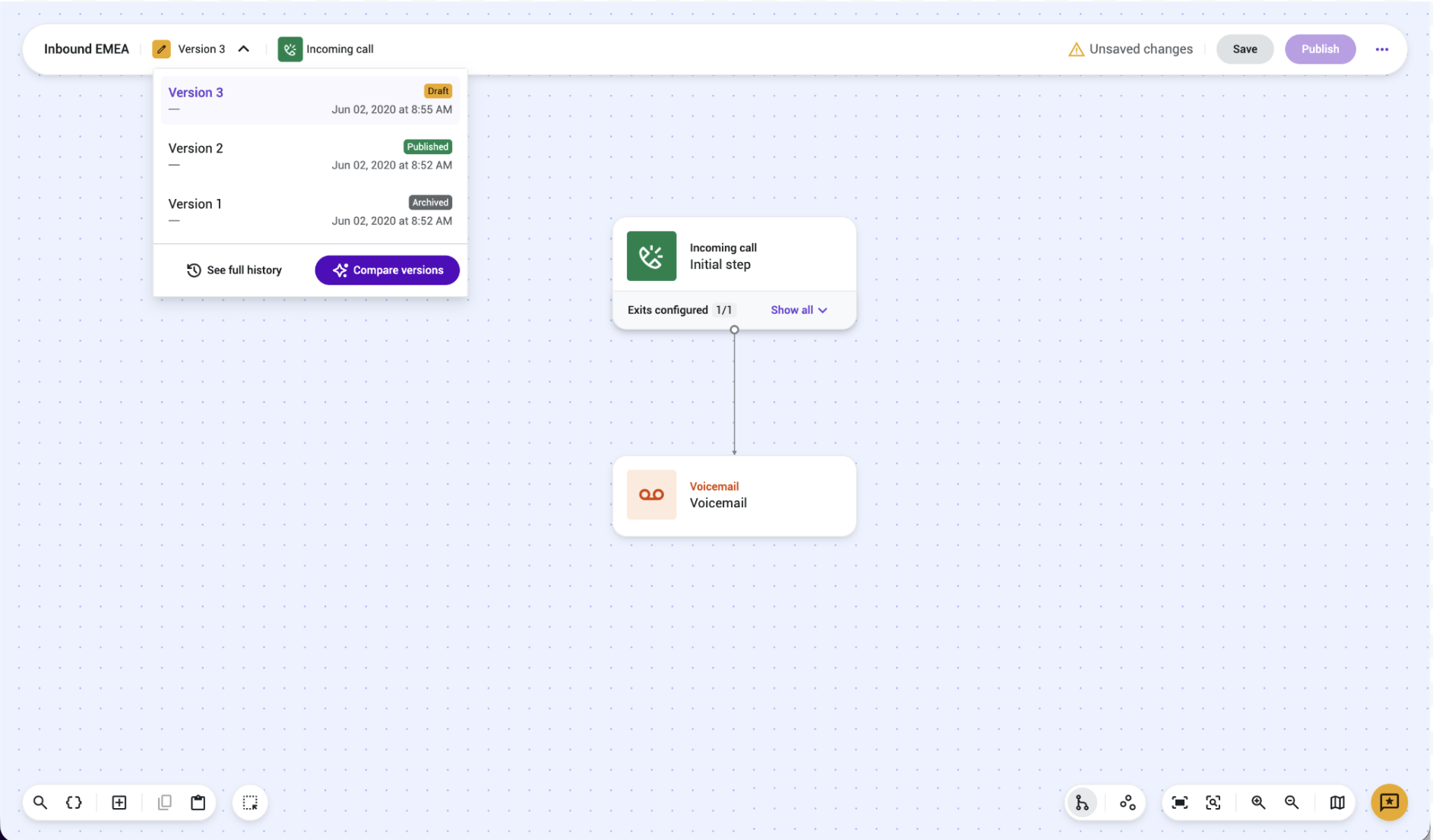
When you create a flow from scratch, you will immediately start working on a draft. You can only build or make changes to a flow if it’s in a version with the draft status. No calls can be made or directed to a version with this status.
## **Saving and validating a draft**
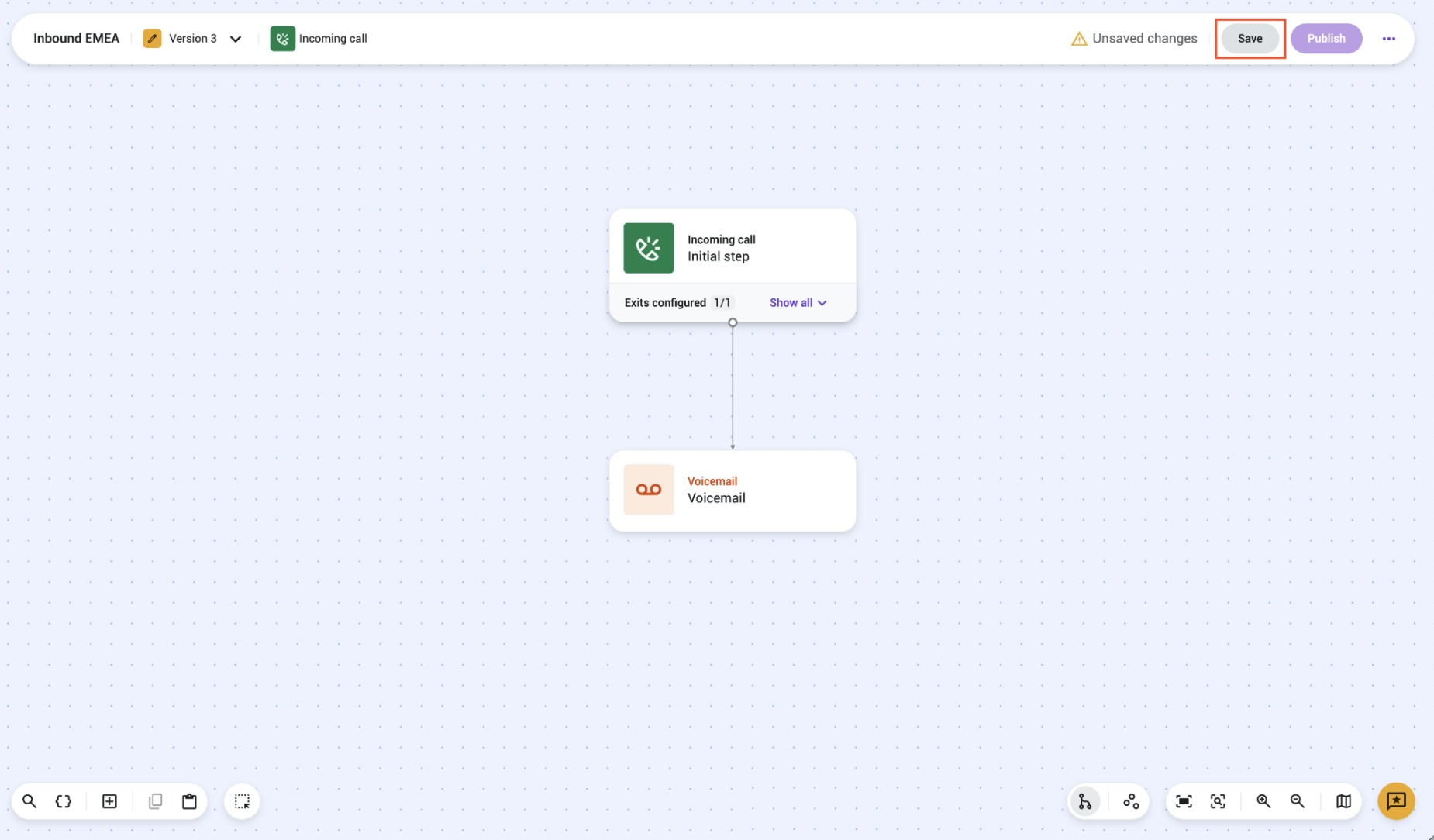
A flow is "Unsaved changes" if you have made changes to it but you haven't saved it yet.
You can save your draft by clicking the **Save** button. Clicking **Save** triggers an automatic error verification. If there are errors, you need to fix them before being able to eventually publish the flow. When there are no errors, the version is validated and can be published at any time.
## **Discarding a draft**
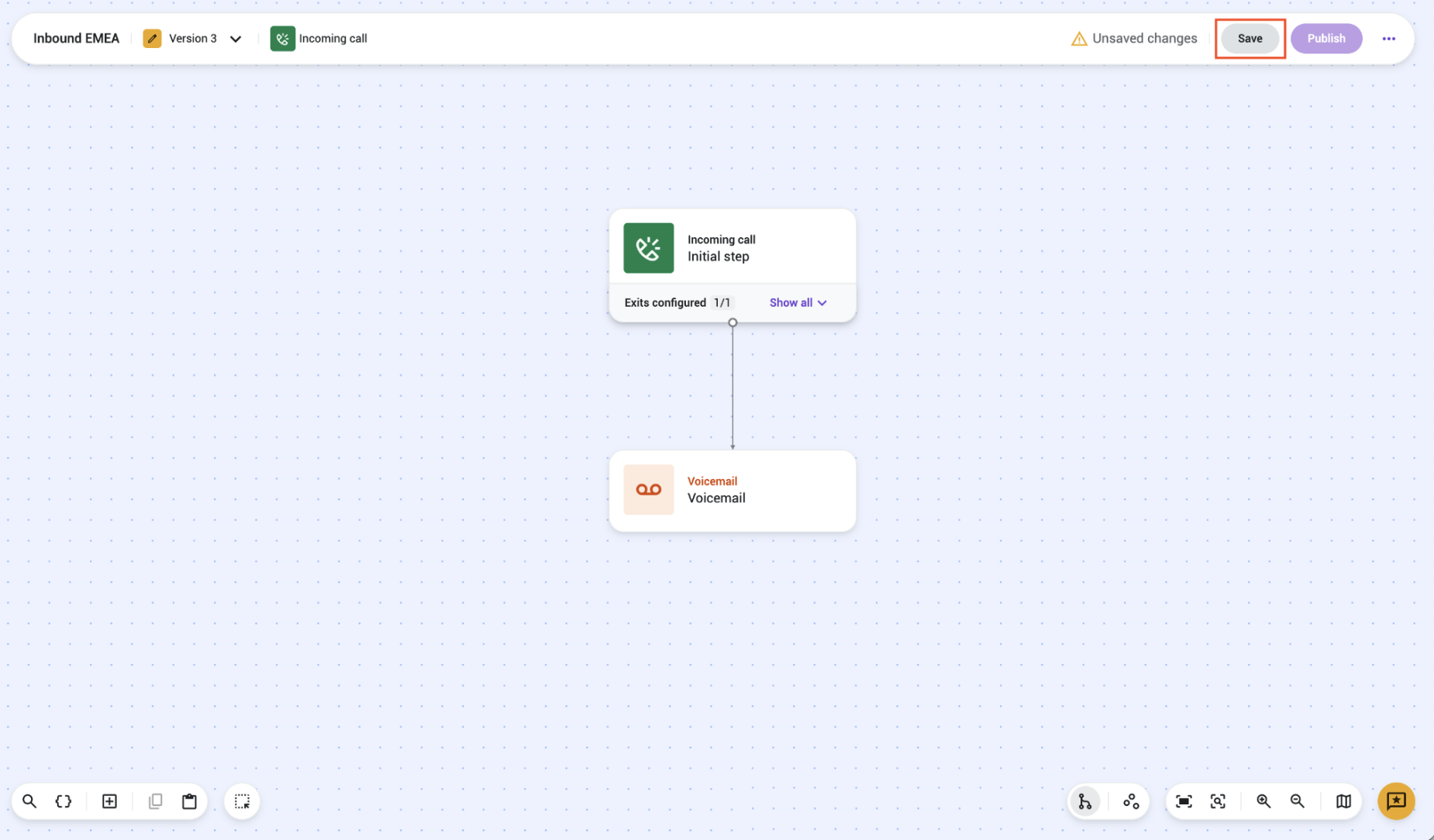
If, at any moment, you need to discard a version of a flow, click on “More Options” \[...] in the top-right corner of the Studio Editor and then hit **Discard version**. This action is particularly relevant because it is only possible to have one draft per flow.
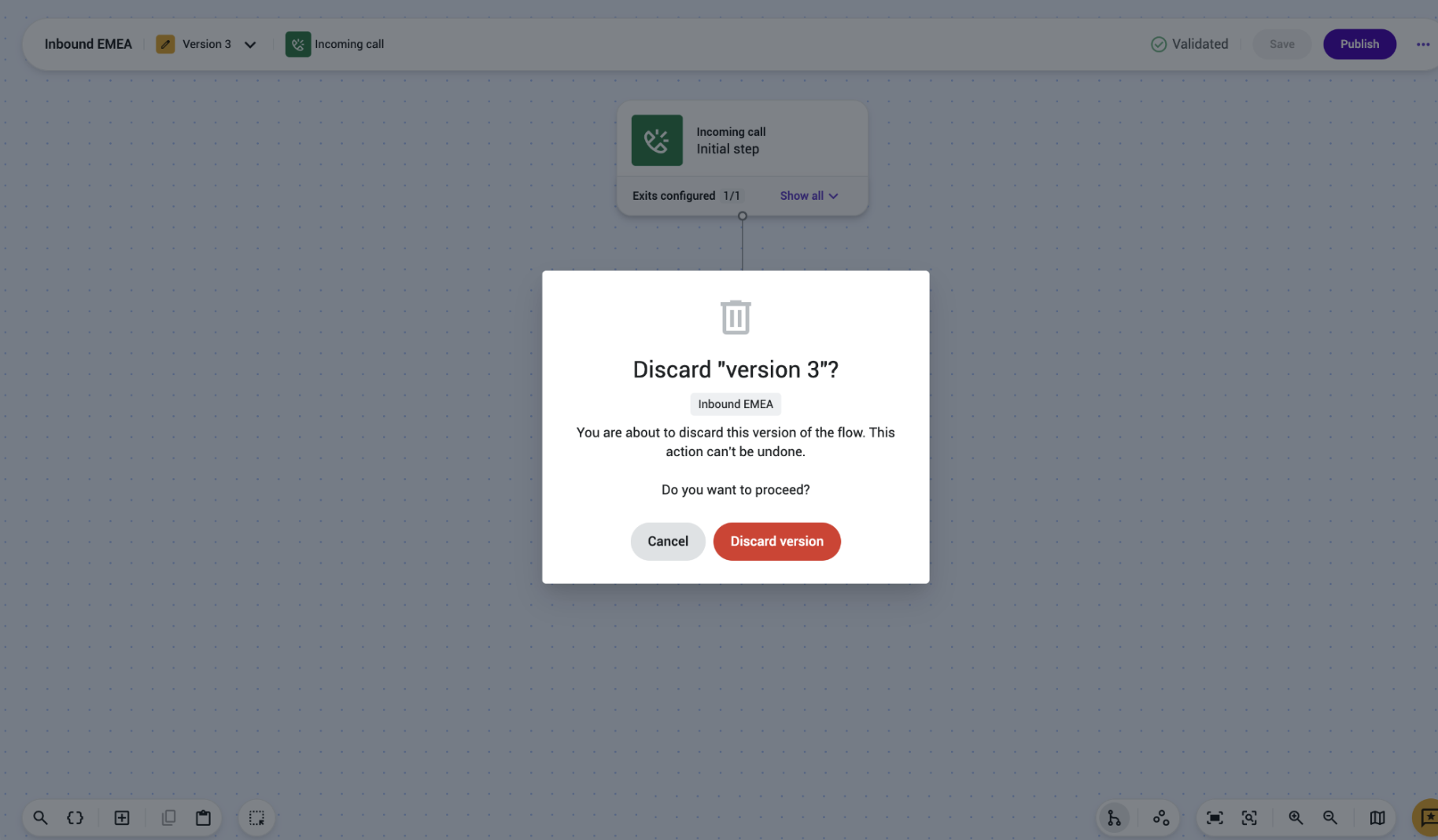
Confirm your action when the modal window appears, by clicking **Discard version**.
## Published
## **Publishing a flow**
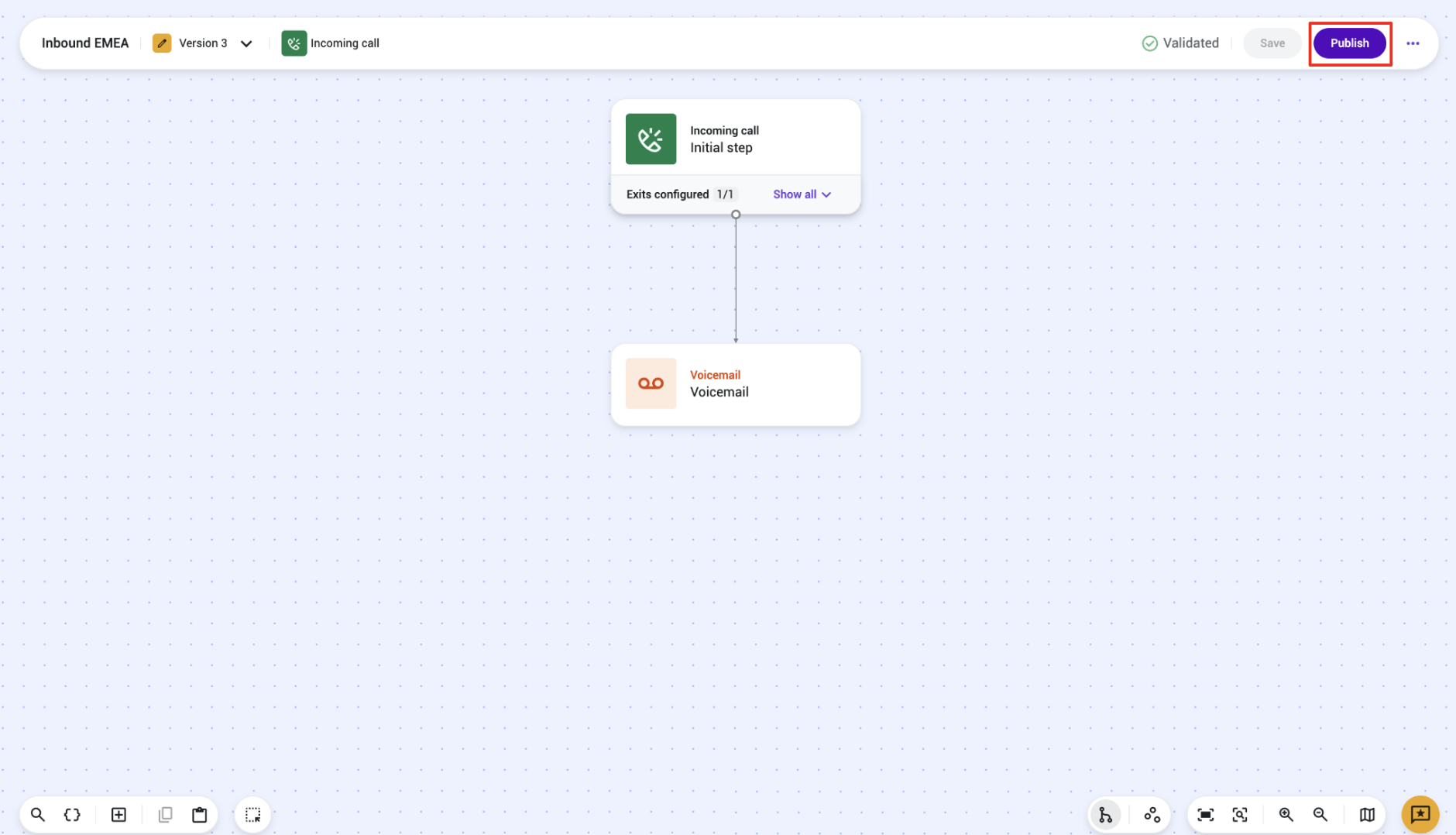
When you have finished configuring your flow, you must publish it to be able to assign it to one or more phone numbers. Calls made to these phone numbers will then follow the routing rules you have set up in your flow.
To have your flow published:
* [**Save** and validate a draft.](https://studio.talkdesk.com/docs/flow-status-and-versions#section--saving-and-validating-a-draft-)
* Click **Publish** in the top-right corner, and the flow will change to the published status.
From that moment on, you can [assign your flow to numbers](https://studio.talkdesk.com/docs/assigning-a-flow-to-a-number).
## **Editing a published flow**
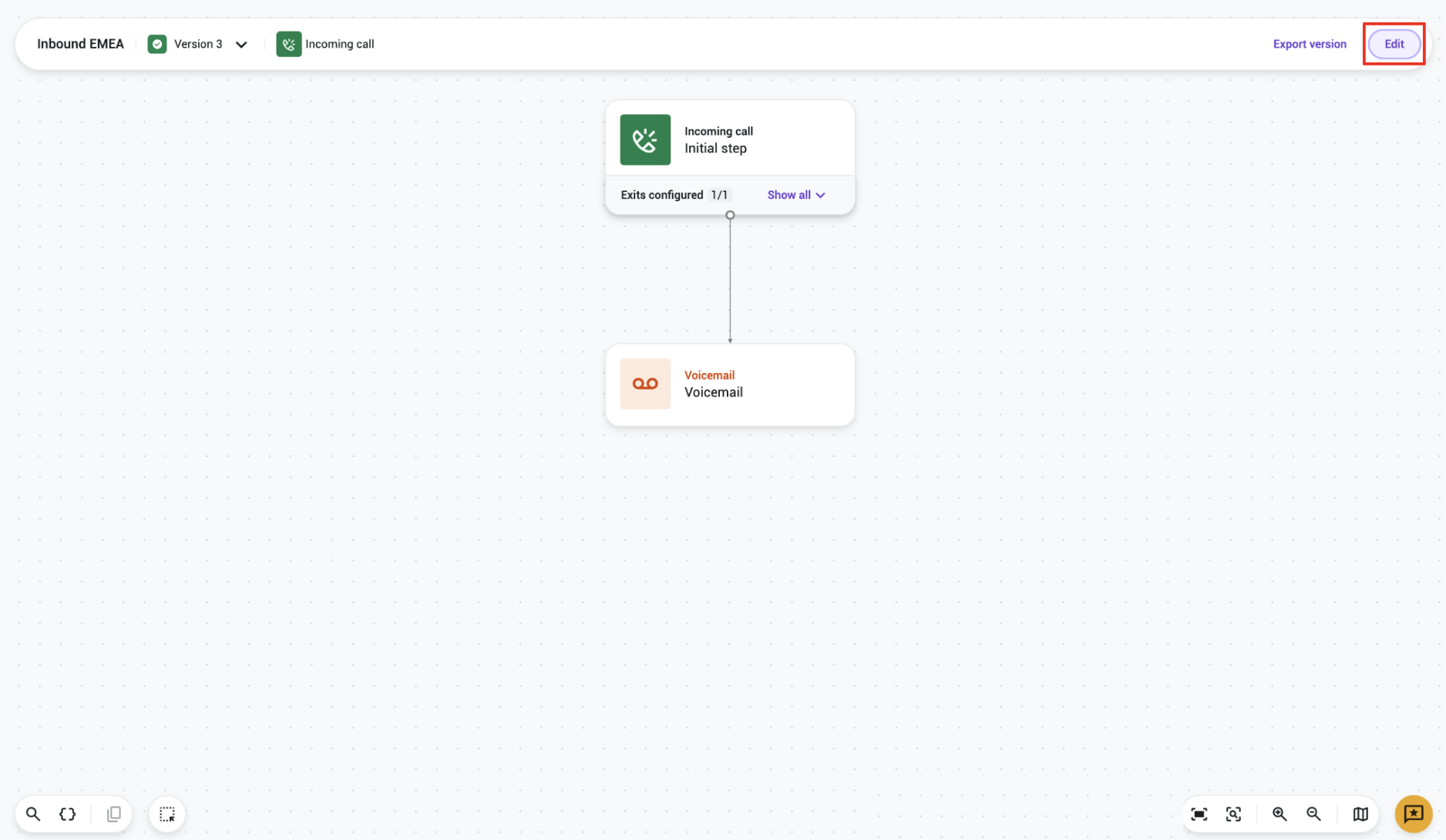
Clicking **Edit** within a published flow will create a copy with a "draft" status.
In case the published flow already has a draft version, a warning message will be displayed to inform of the existing draft version. It will also enable you to navigate to the draft by clicking on the **Go to draft** button.
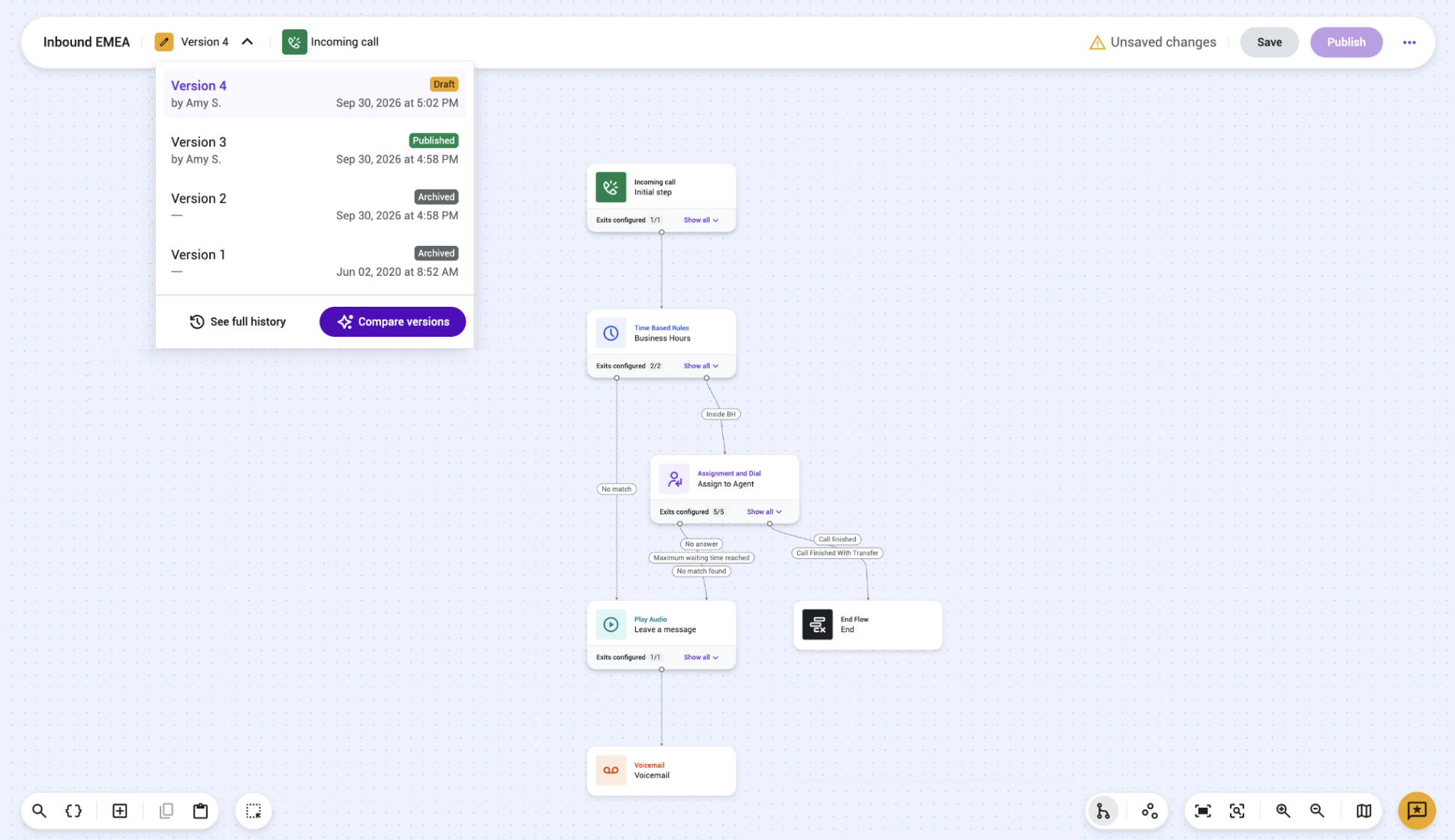
In both cases, you can work on the new draft version while the previous version remains published.
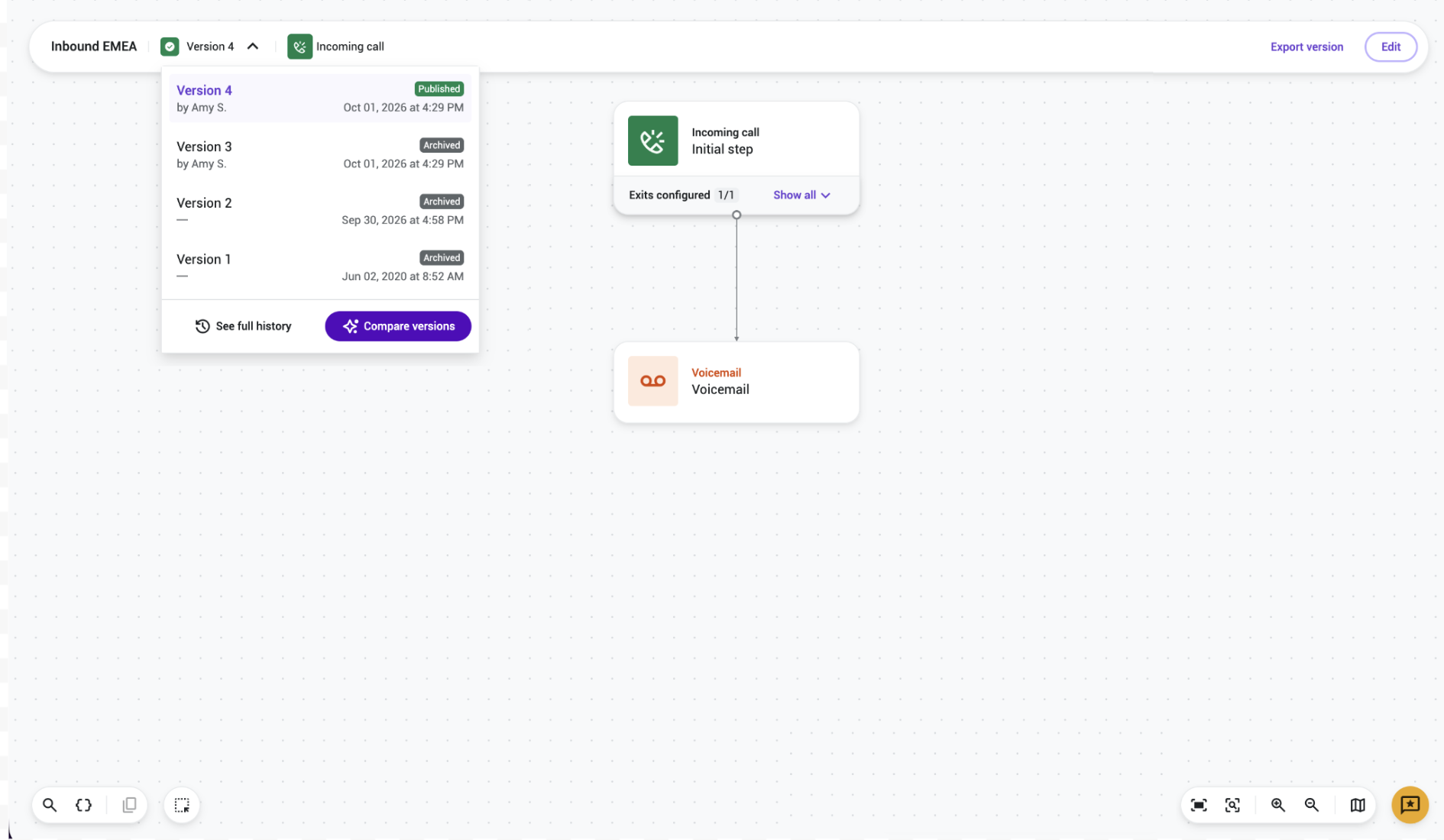
Since there can be only one published version per flow, if you publish this new draft, the previous version will be archived automatically.
## Archived
A published version of a flow is archived automatically when you create a new draft version and publish it.
## **Restoring an archived version of a flow**
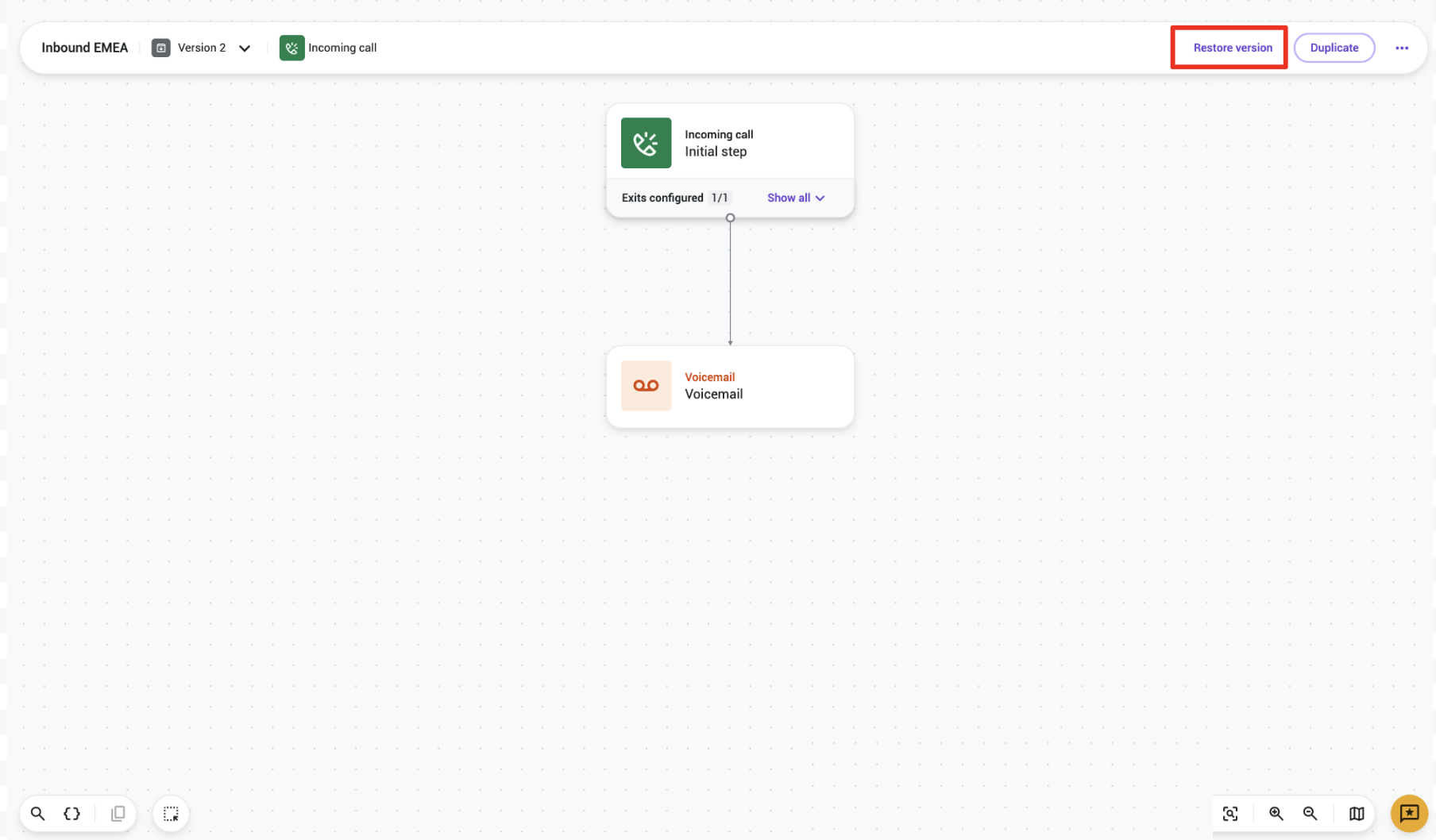
You can restore an archived version by clicking on the **Restore version** button.
Similar to what happens when a flow is edited, if you click on **Restore version** and a draft version of the flow already exists, a warning message will inform you of this existing draft version. You can navigate to it by clicking on **Go to draft**.
In case a pre-existing draft version is not available, a copy of the archived version will be created as a new draft.
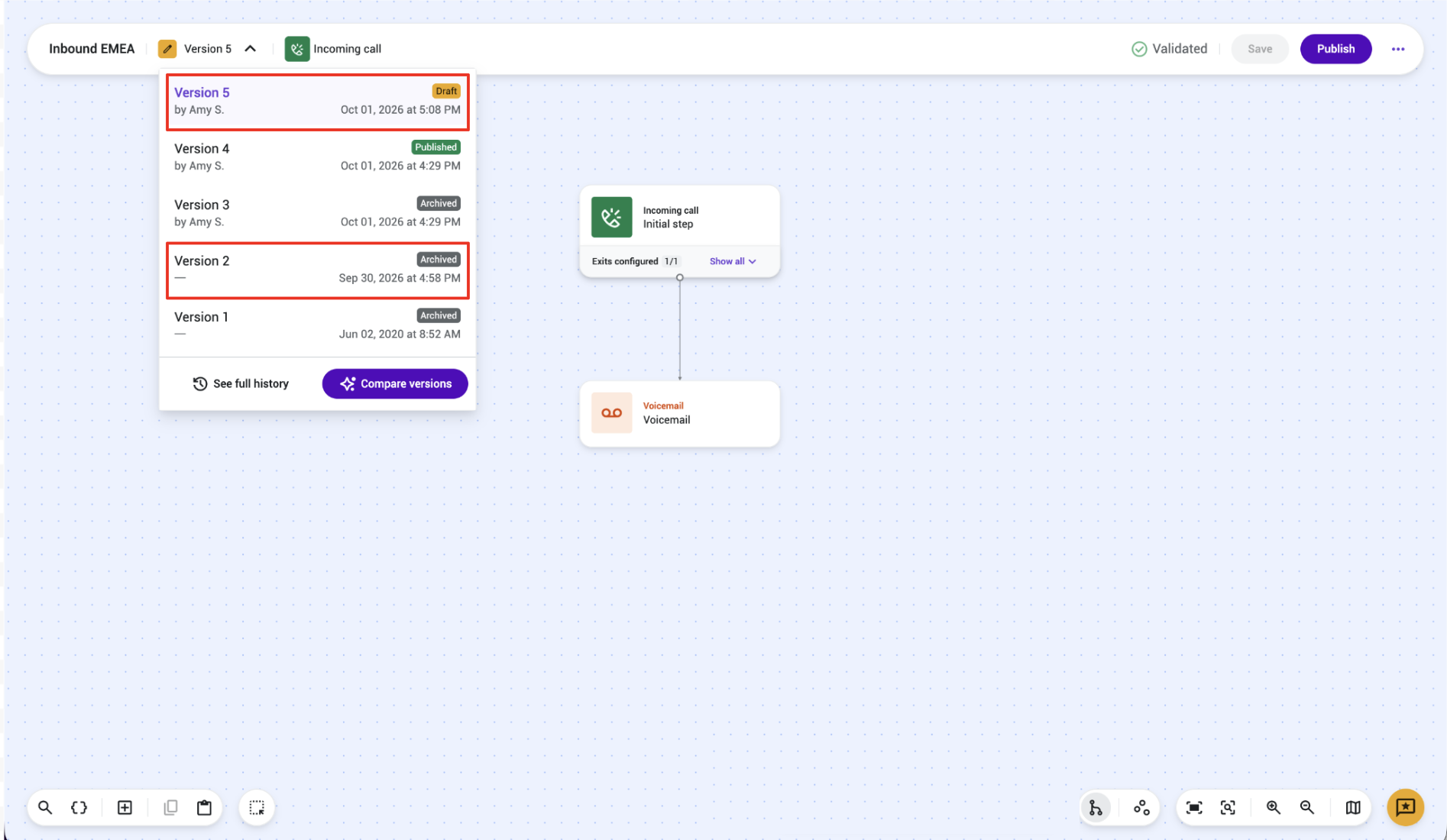
In both cases, you can work on the draft freely while the archived version remains archived.
## **Duplicating an archived version to a new flow**
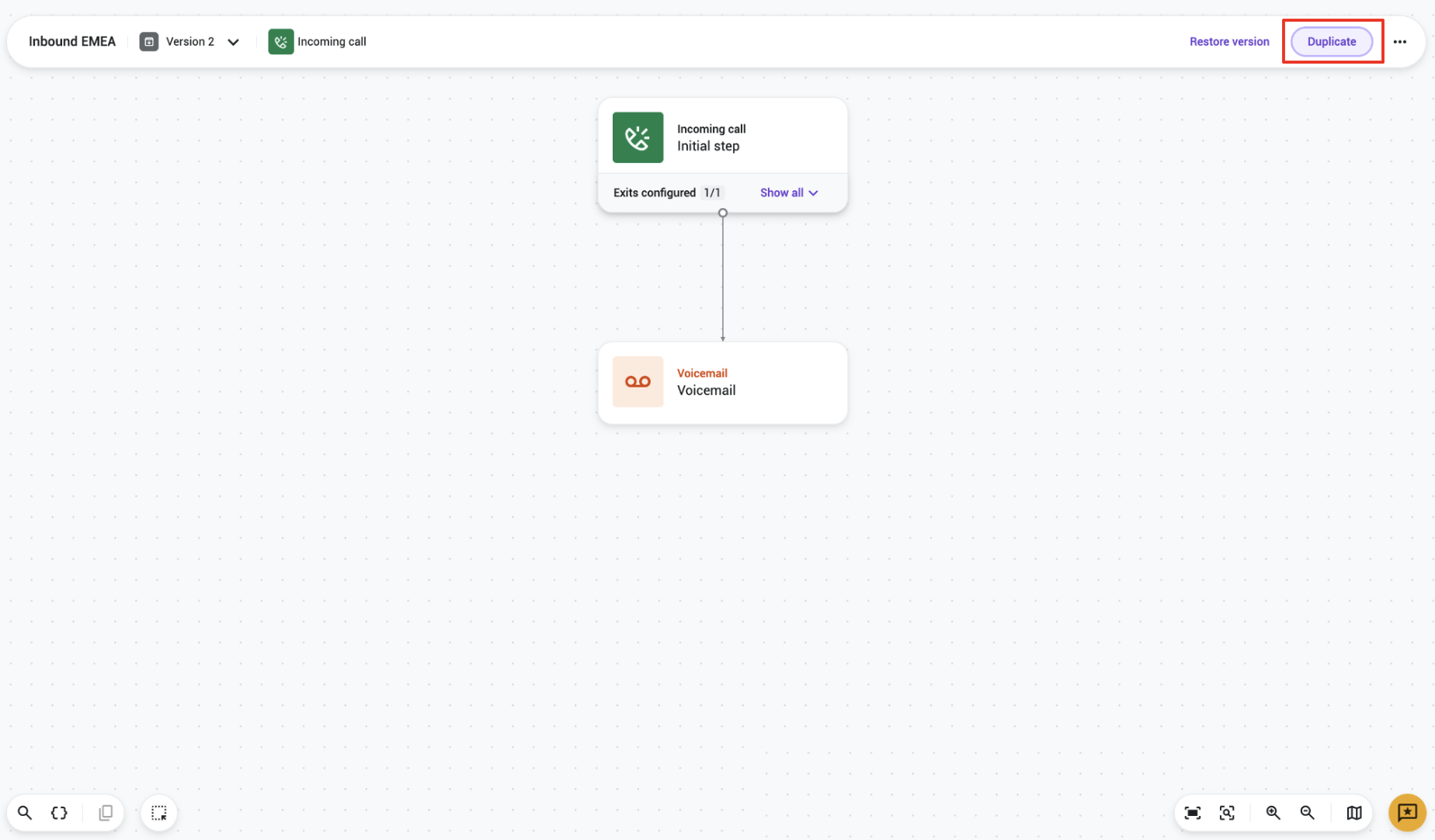
You can duplicate an archived version of a flow by clicking the **Duplicate** button in the top-right corner of the Studio Editor.
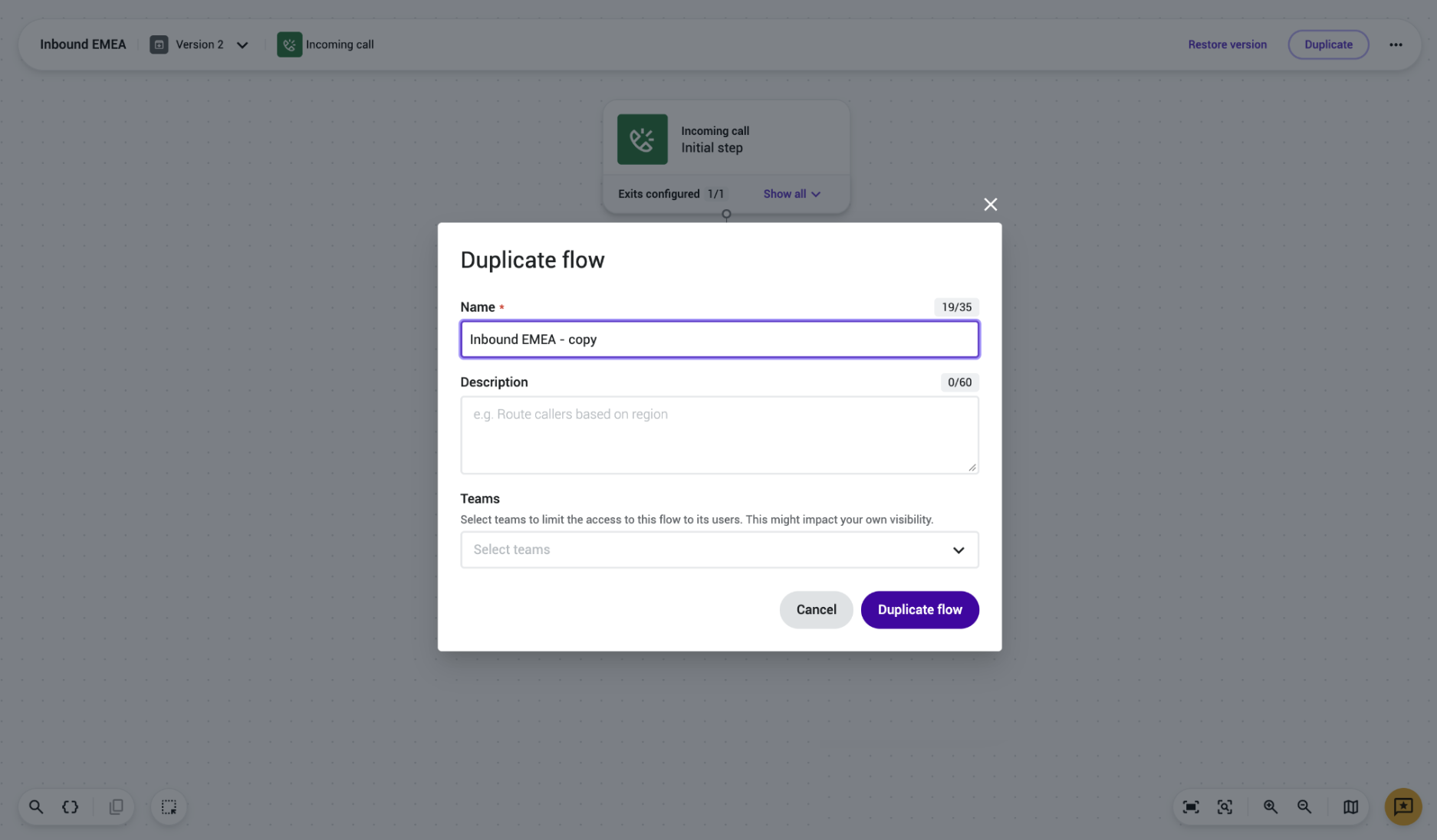
A new flow will be created (not a new version) when you fill in the “Name”, and if necessary, the “Description” and hit **Create Flow**.