

Getting Started
NoteIf you are in Talkdesk Workspace, you can access Studio and all features described below by navigating to the Studio app. For more information, please refer to this article.
Creating a Flow
Studio can be accessed from Talkdesk main web application, in the browser:
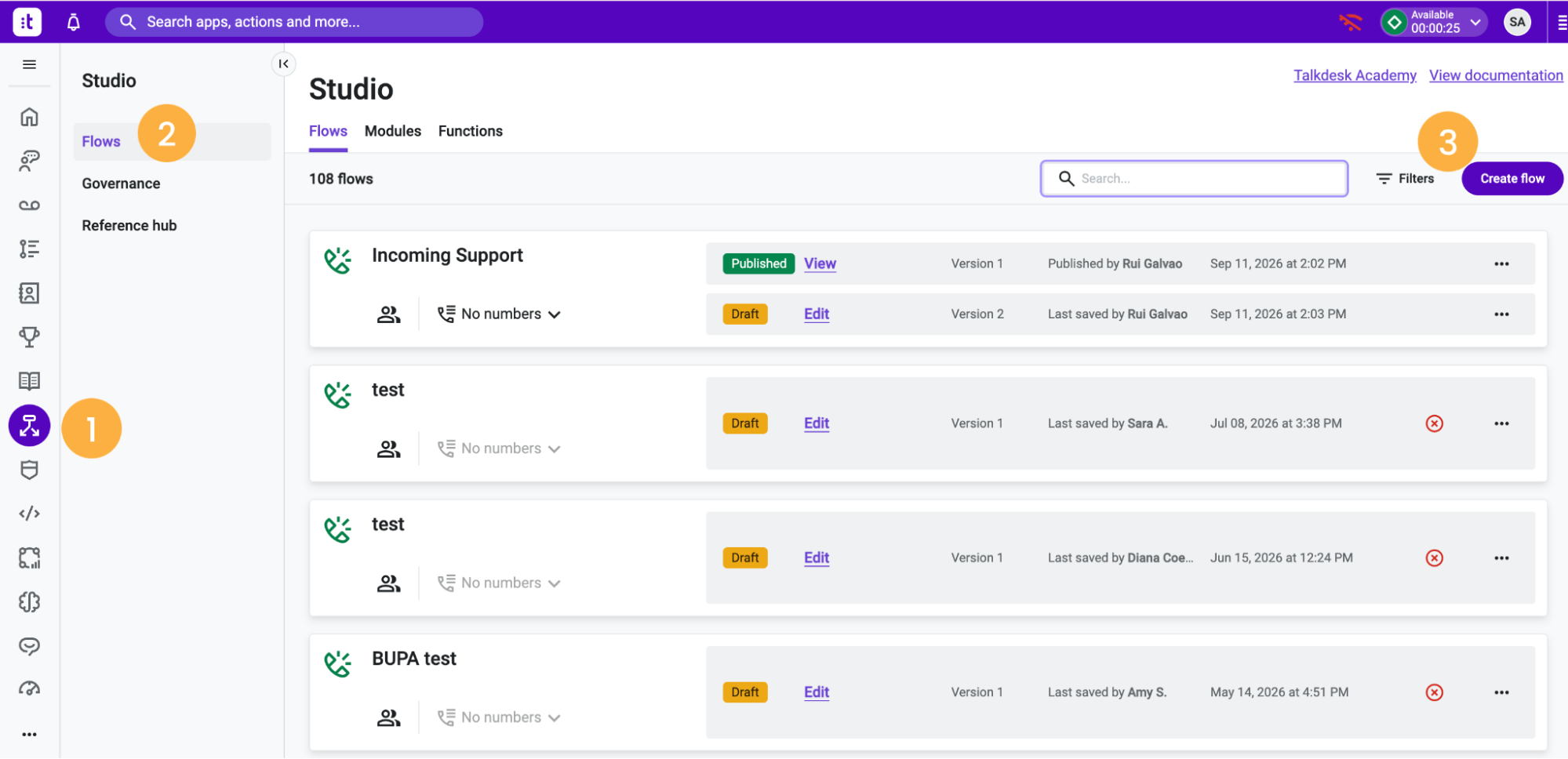
- Click on Admin [1] and then on Studio [2].
- Hit Create flow [3].
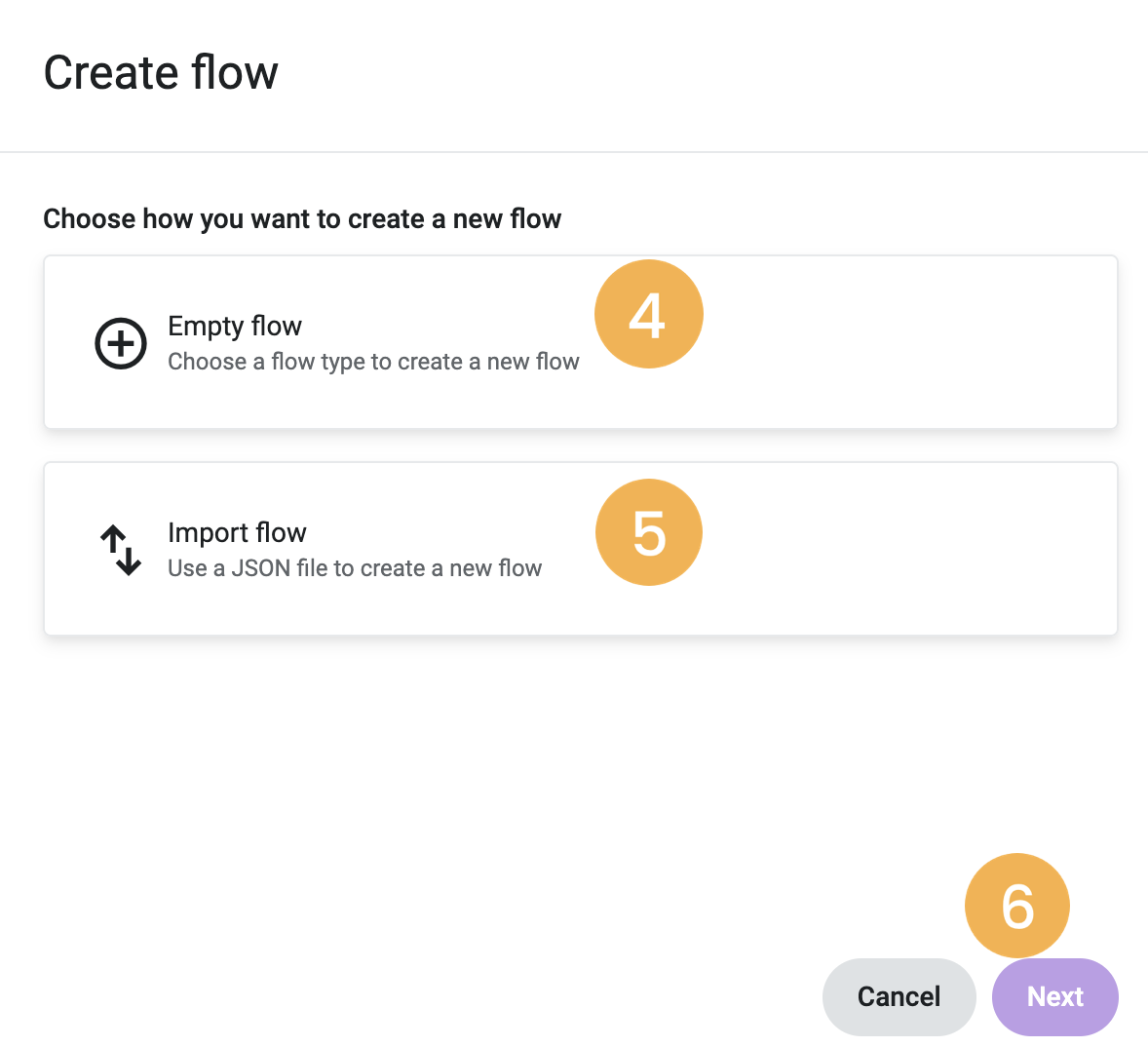
- Choose how you want to create a new flow by selecting Empty flow [4] to set up a flow from scratch, or Import flow [5] to create a new flow from a JSON file.
- Click Next [6].
-
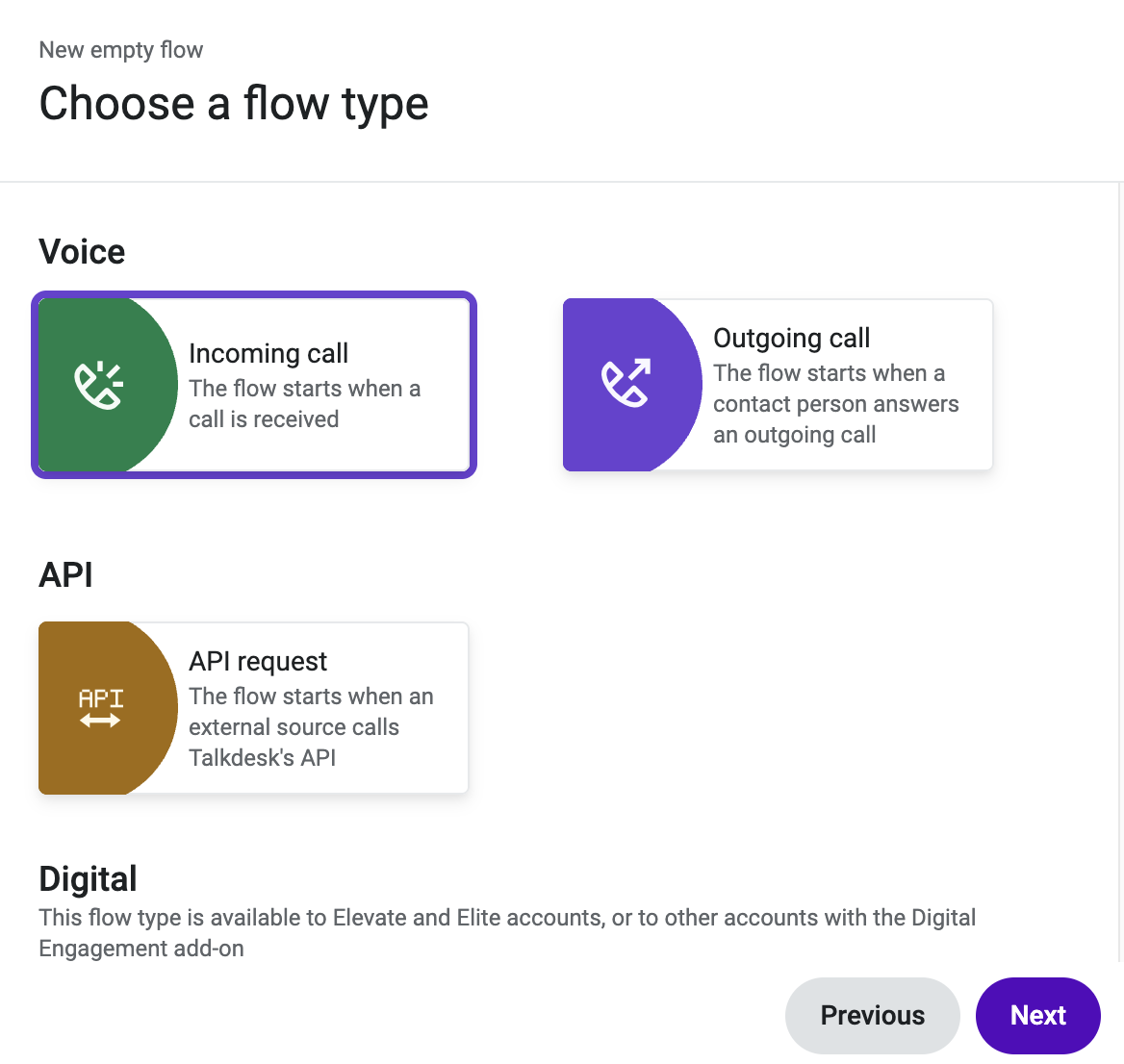
If the option “Empty flow” has been selected, then, on the next screen, you will choose a flow type.
-
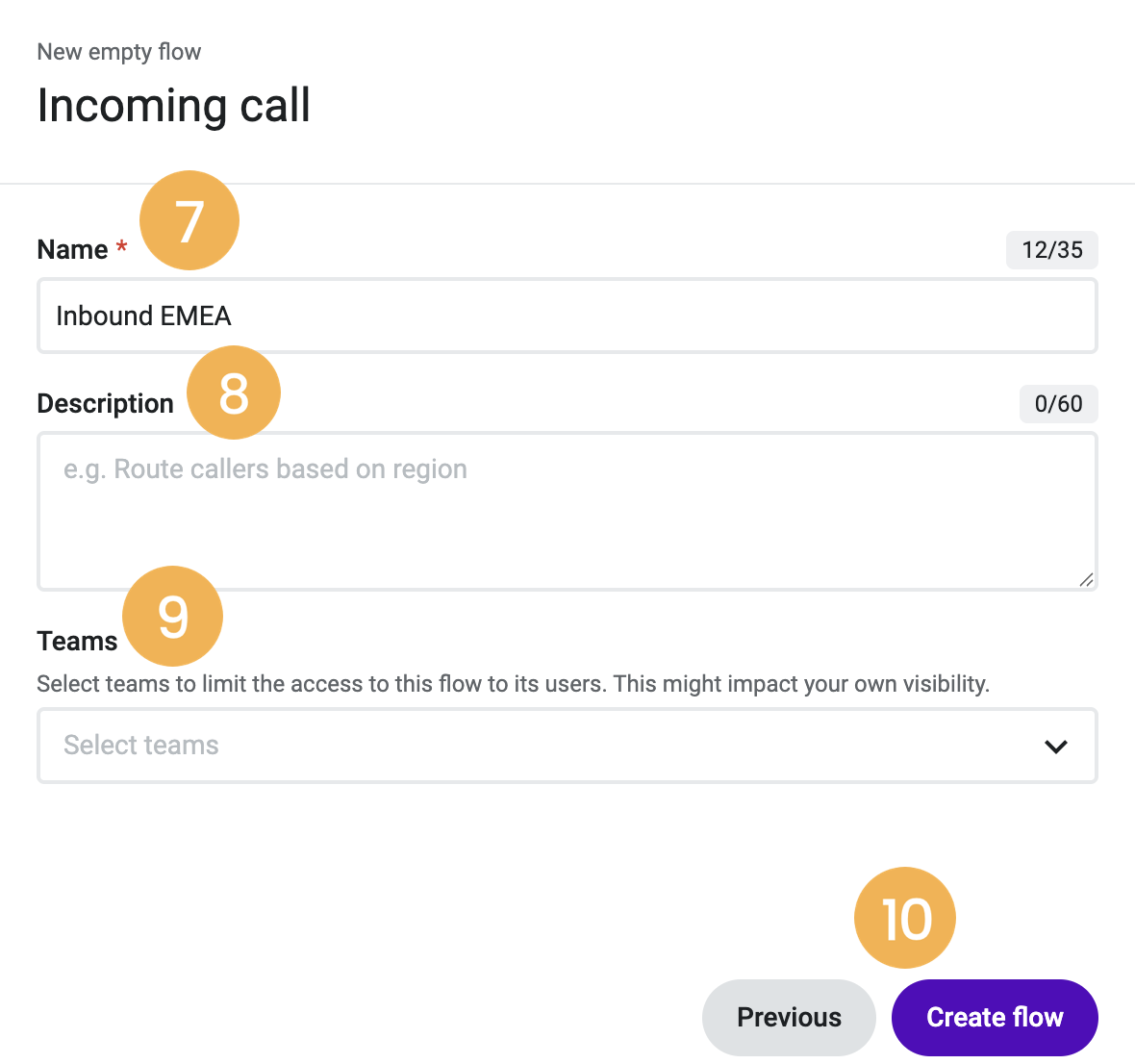
Once a flow type is selected, type in a name [7], if necessary, a brief description of your new flow’s main actions [8], and Teams [9], if you wish to limit the access to this flow to its users.
-
Click on Create flow [10].
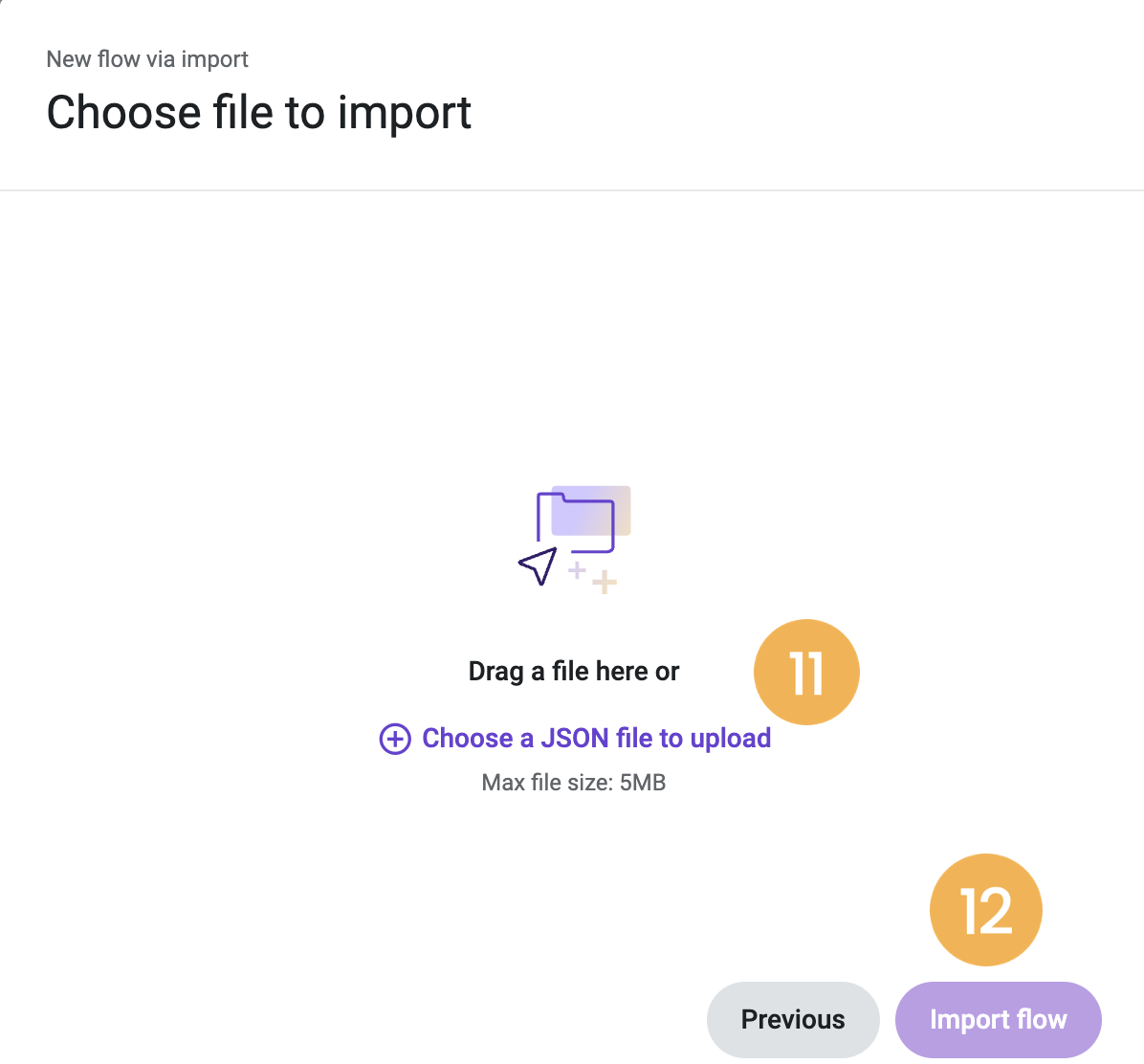
- If you have selected “Import flow”, choose a file to upload [11] and click on Import flow [12].
Now you can start defining your new flow and configuring its components.
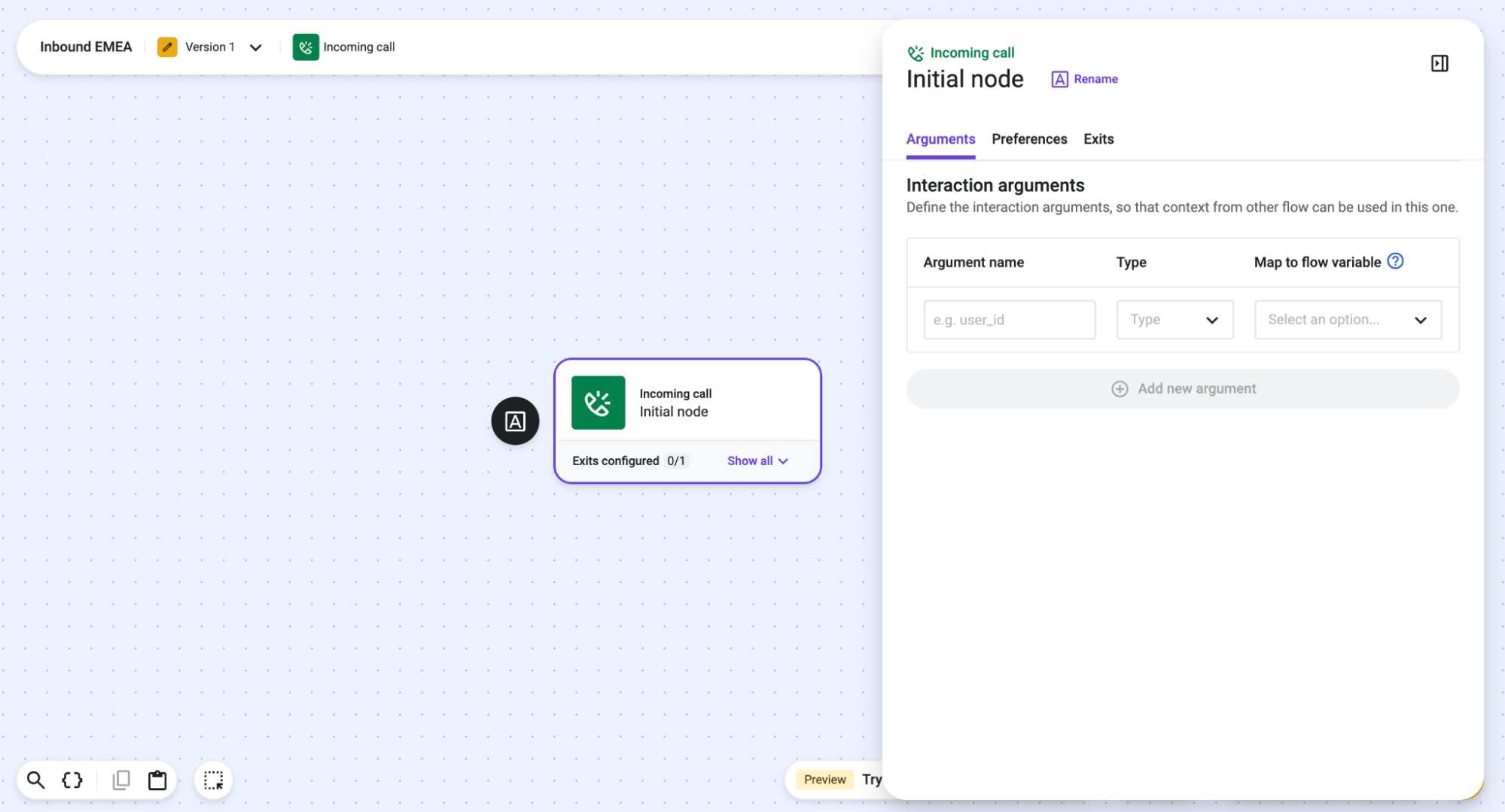
Each flow consists of several building blocks, called components (or nodes). They start with an interaction flow that defines the actions that the components will execute. For example, in one of the available languages, the “Play Audio” component provides the ability to receive an input text and transform it into voice.
You can also use a variable in a “Play Audio” component to play a personalized greeting message for a caller: e.g., you can configure the waiting music that your customer listens to when they call you, so that you can be consistent in your brand management, or take advantage of the time your customers are waiting to promote goods or services.
Use the result of a data dip in Salesforce to route VIP customers to an assignment component with a higher priority. Configure a set of actions to be triggered during a flow execution according to time rules, or any other conditions, to automate communications sent to customers during or after a call, etc. The possibilities are endless!
Manually Positioning Components
Studio supports two options for the layout of nodes in canvas: Automatic or Manual Layout.
Automatic vs. Manual Layout
Builders can toggle between:
- Automatic Layout: The system arranges components automatically. This remains the default state for all flows.
- Manual Layout: Builders can freely drag components around the canvas, with node collision detection active to prevent overlapping.
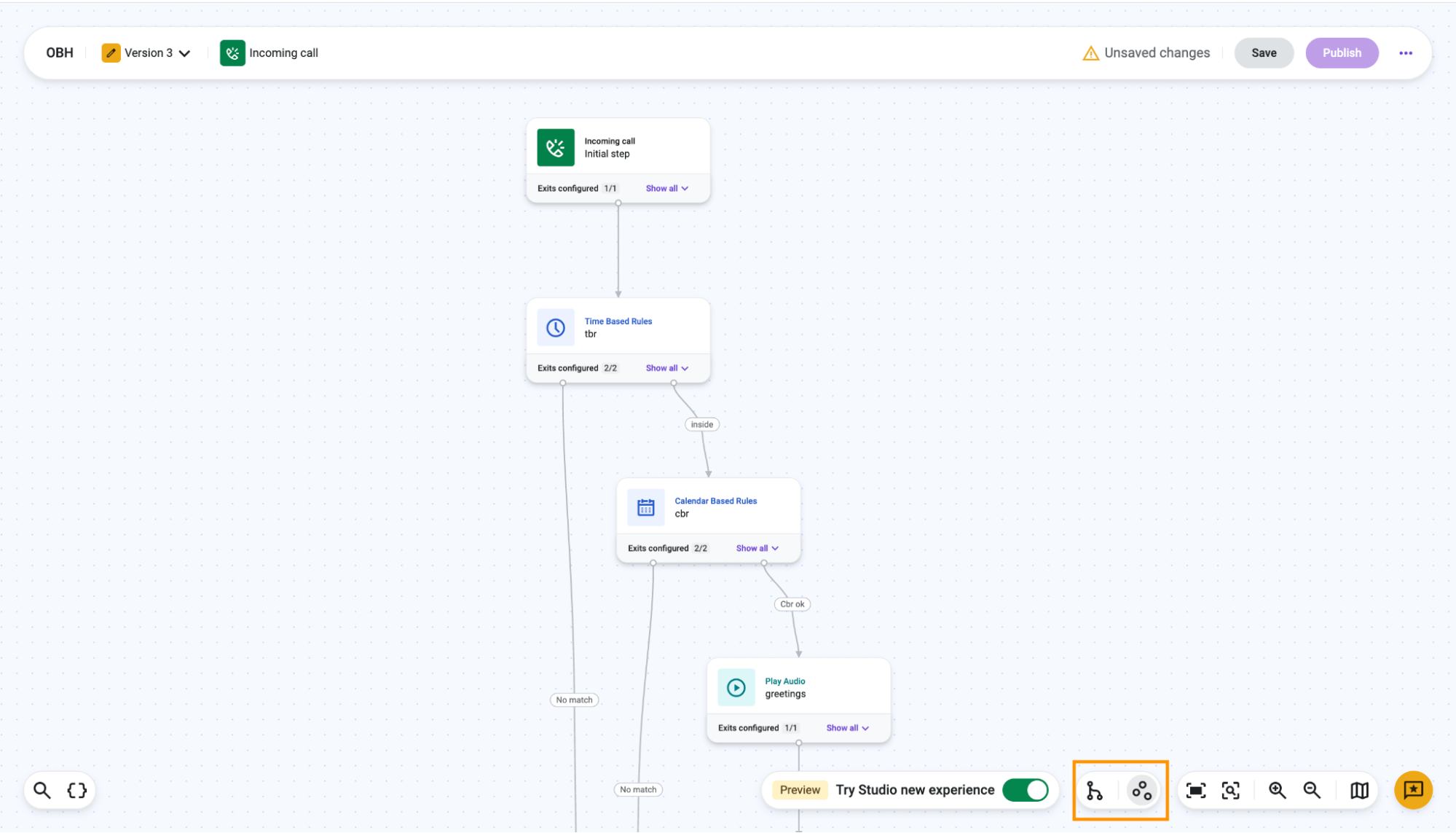
The first time a builder switches to Manual Layout, the canvas adopts the current automatic positions as a starting point. From there, the builder is free to rearrange components as needed.
Switching Back to Automatic Layout
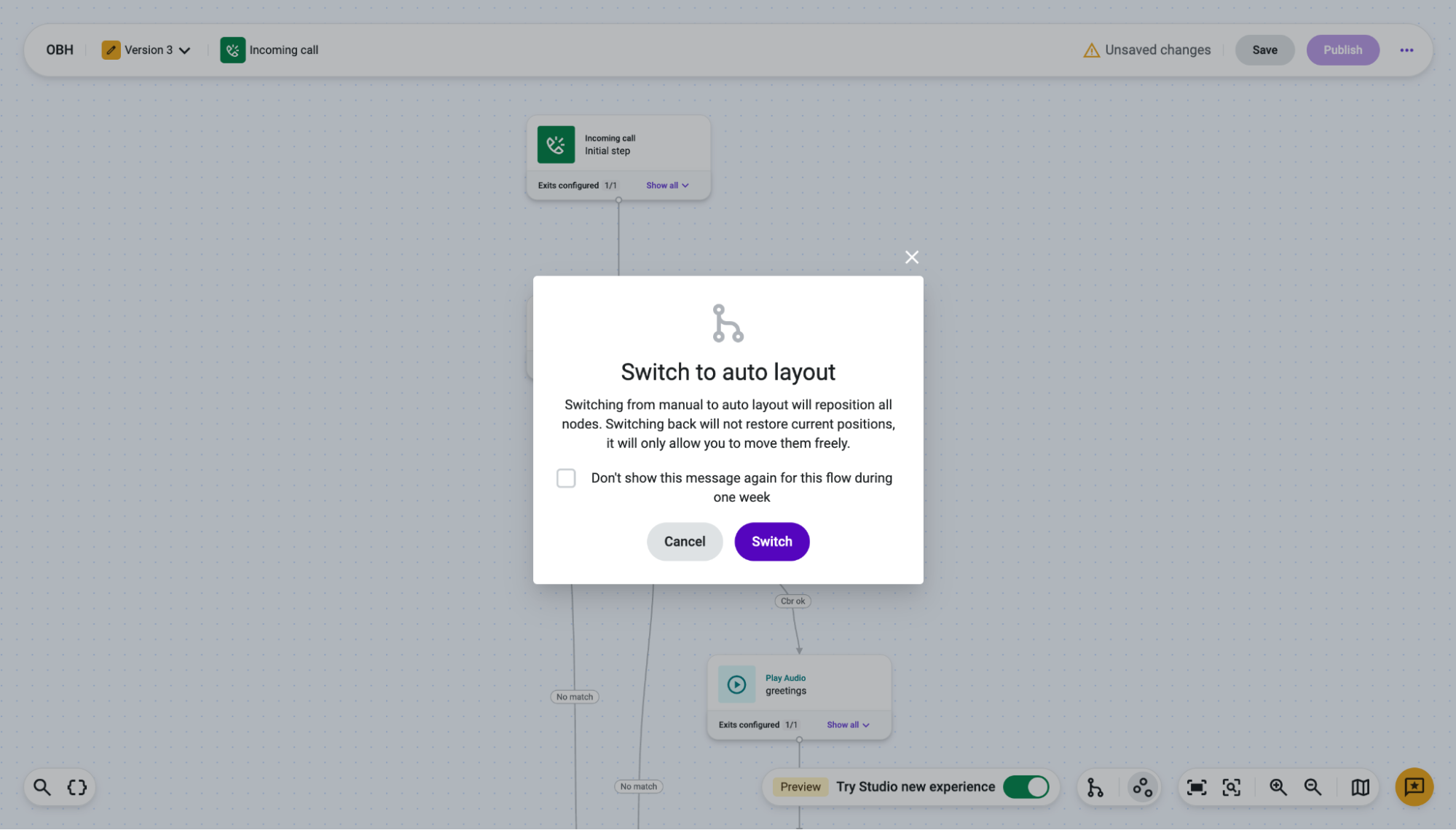
If a builder switches from Manual back to Automatic Layout, a confirmation dialog warns that the manual positioning will be lost and that this action cannot be undone. If the builder later switches back to Manual Layout, positioning will need to be redone. The dialog can be dismissed.
Persistence and Permissions
- Consistent across users: The selected layout (and manual positioning, if applicable) is stored within the flow itself, so the canvas looks the same for every user who opens it and not just the person who arranged it.
- Layout history: If a builder moves from Manual back to Automatic and then to Manual again, the previous manual layout is not retained and must be reconfigured. This means that manual positions aren't stored while a flow is in Automatic Layout.
- Roles & Permissions: The Manage flows permission controls access to this capability.
- Node highlighting: A pop-up highlights the currently selected node while in Manual Layout.
Updated about 1 month ago