

Variables & Context Manager
Understanding Variables
Variables can be used in multiple locations in a Studio flow to collect data points that will be used to make routing decisions.
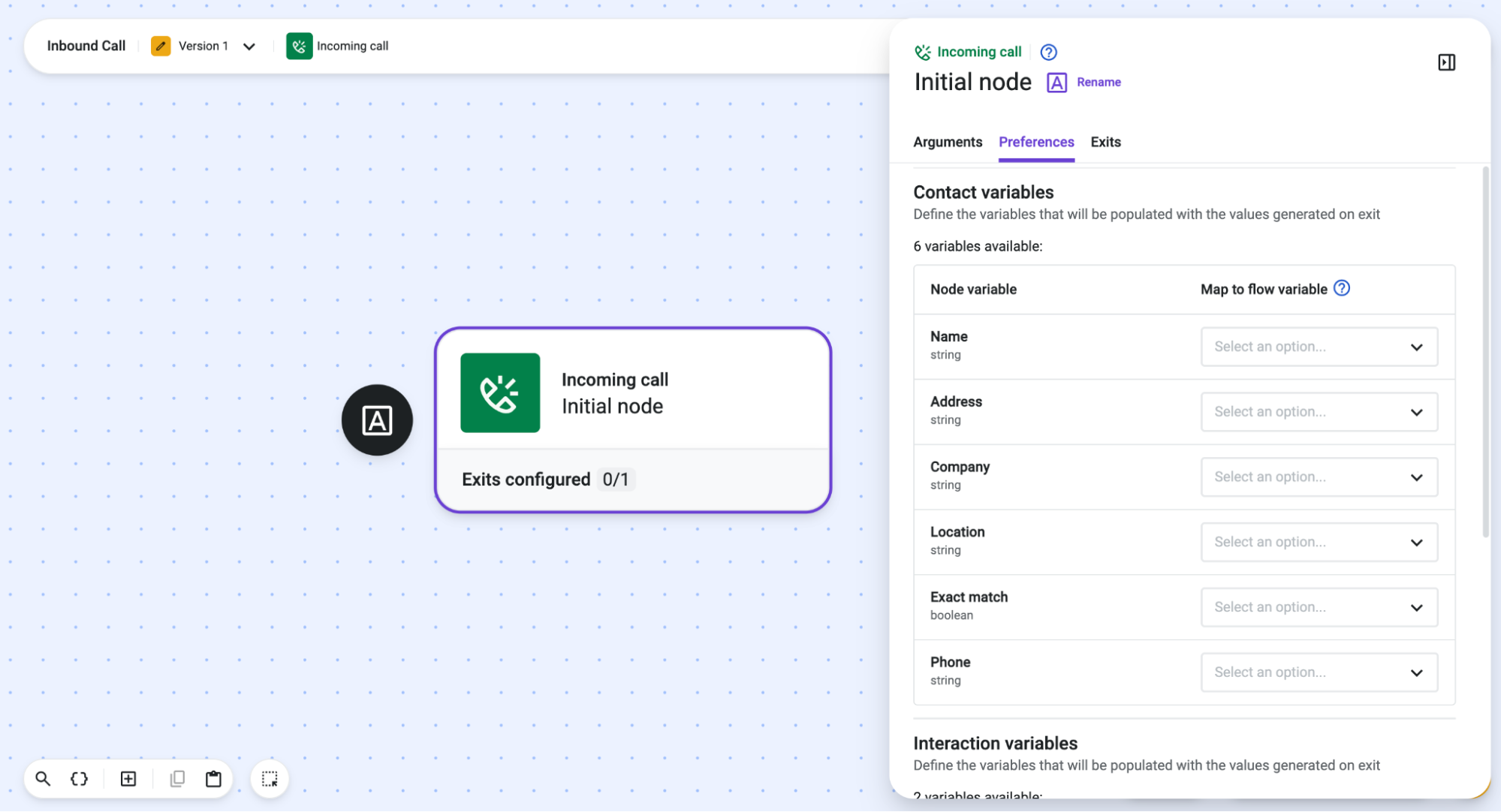
Each component may expose "step variables" or data points from which the variables can be created when clicking on the dropdown and then on Create variable:
These variables can later be used to initialize or update some flow variables.
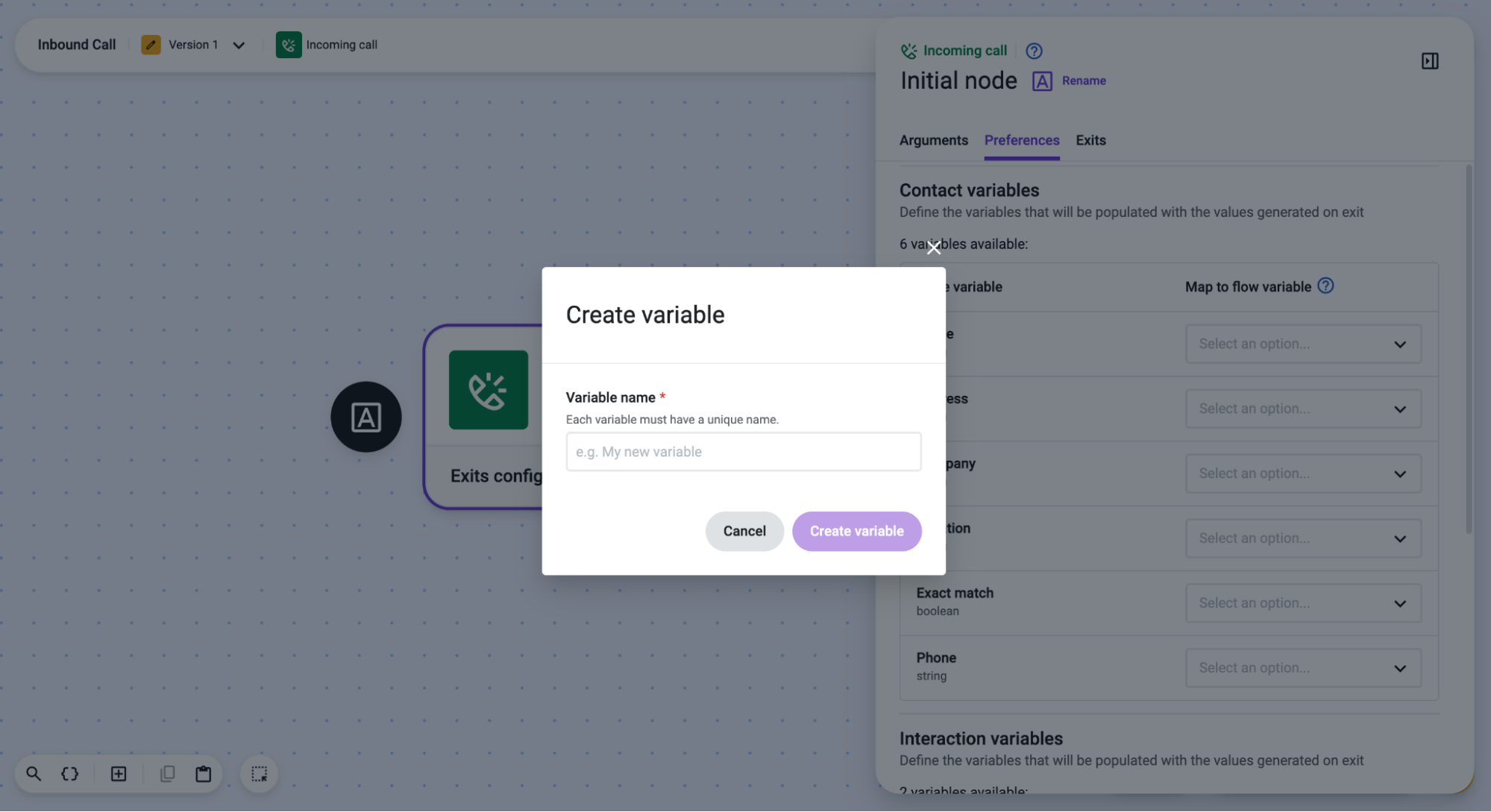
For example, the Incoming Call component exposes several data points (contact details, source, and dialed phone numbers).
Another example is the Standard IVR component, which collects the keys pressed by the caller and populates the "selection" variable; it also populates the "exit_name" variable, whose value retrieves the name of the exit assigned to the selected key press.
These variables can then be used in other components.
How to write the name of a new variable:
• Do not use spaces. You can use an underscore and numbers instead.
• Write all letters in lowercase.
• Do not use accents, apostrophes, or other special characters.
• Add an underscore before the number, if you are using letters and numbers to name a context variable.
Example: case_1
When used in a text field, the syntax to reference a variable is:
%{current_flow.variable_name}Using the example above, the syntax would be:
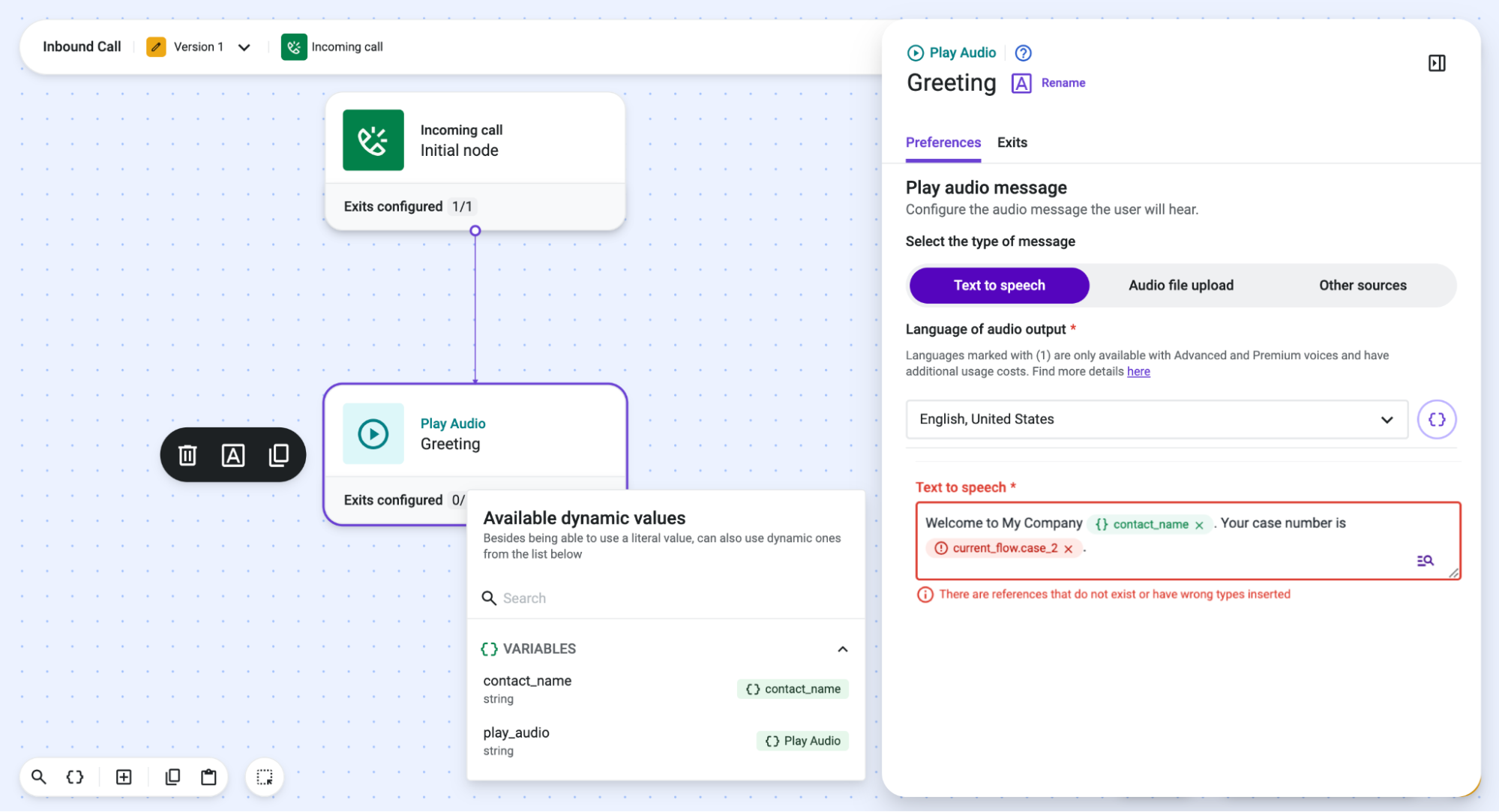
%{current_flow.case_1}For example, you can use a variable in the Play Audio component to play a customized greeting message. To reference a variable, the above-mentioned syntax can be applied, with the variable being automatically converted into a chip, or it can be selected directly from the helper's list. The Studio component's field will display the variable's display name.
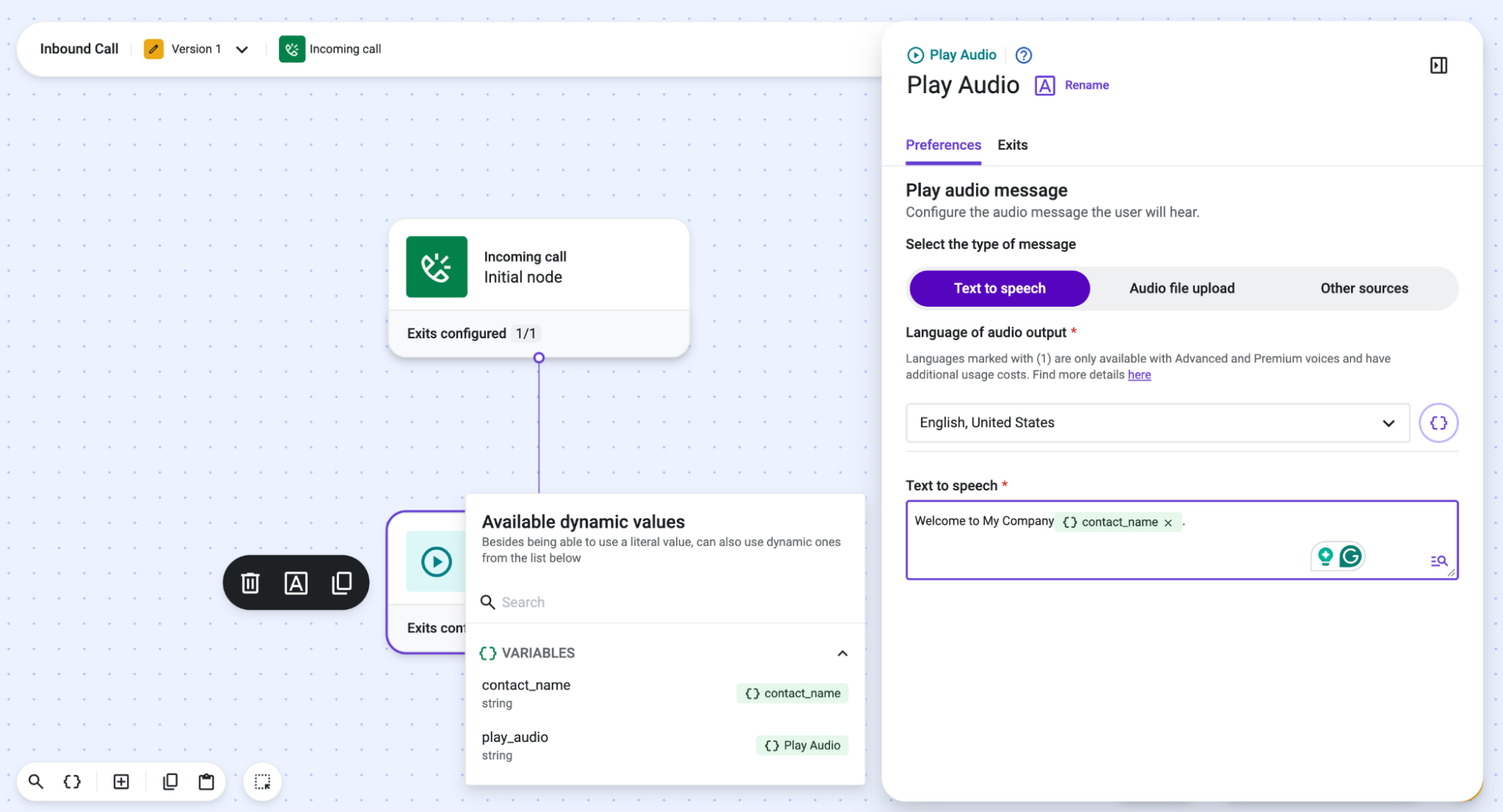
The variable can be initialized from the initial component (Incoming Call) or via a data dip in your CRM system.
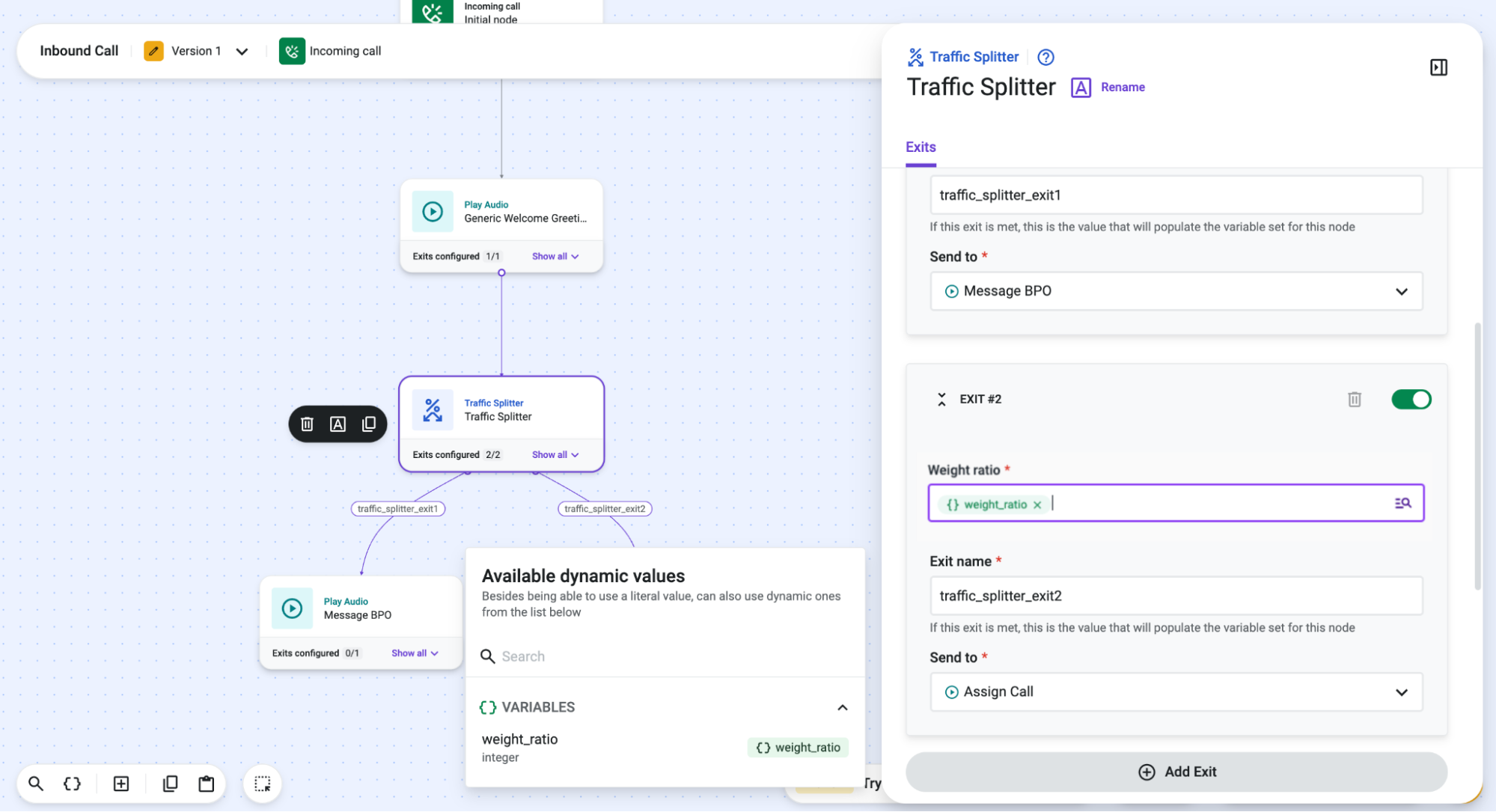
Another example is the usage of a variable to define the "Weight ratio" value(s) in the "Traffic Splitter" component.
Notes
- The way of referencing a variable in Studio components with the automatic conversion of the %{current_flow.variable_name} syntax into a chip and with the helper, as shown in the image above, is available across text and number input fields. For number input fields, basic formulas, like concatenations, are not yet supported, meaning a single variable should be used in these types of fields for the moment.
- Please keep in mind that an underscore should be placed before the number in case you are using letters and numbers to name a variable that will later need to be referenced (in a query, for example).
- When working with variables, you can find error scenarios such as for a wrong variable type, a variable that does not exist, or a reference that is invalid. In such cases, the chip will show in red and an error message will be displayed next to the component's field.
Context Manager
The Context Manager gives builders a single place to view, filter, and manage all context variables in a flow.
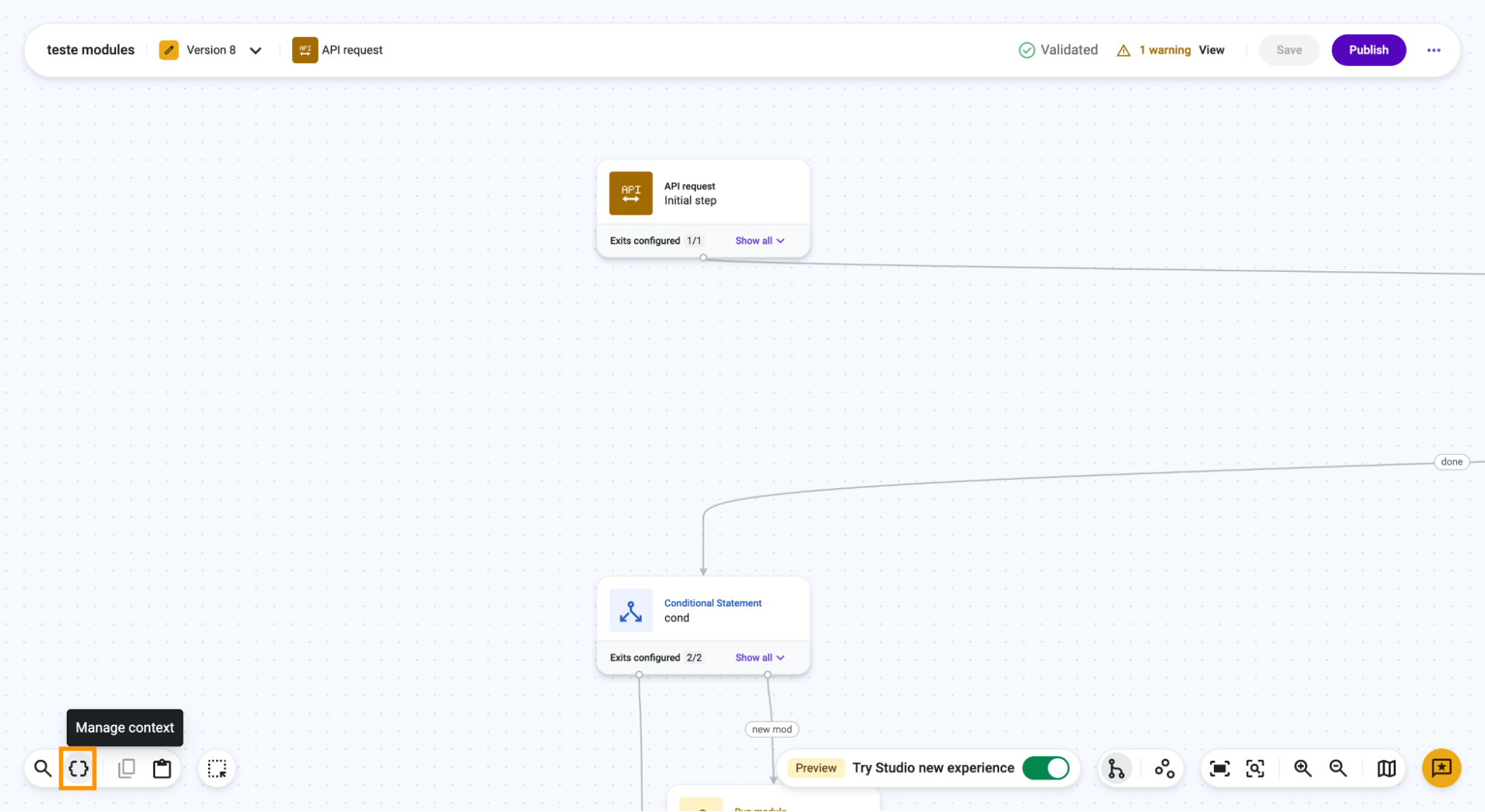
To open the Context Manager, builders click the Manage Variables icon in the bottom-left corner of the editor toolbar.
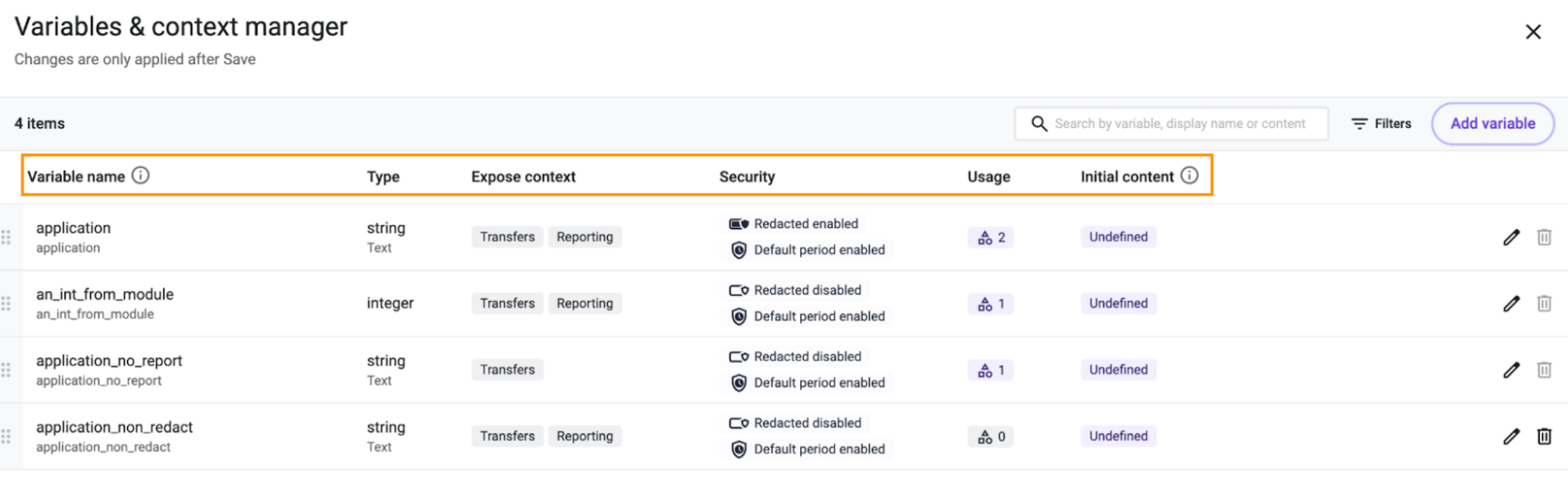
The modal displays the following columns for each variable:
- Variable Name: The variable's name and display name.
- Type: The variable's data type - string, boolean, number, or integer.
- Expose Context: Where the variable is exposed
- Security: The variable's redaction and retention settings.
- Usage: Whether the variable is in use, and which nodes write to or read from it.
- Initial Content: The variable's default value, if one is set.
Creating a Variable within Context Manager
-
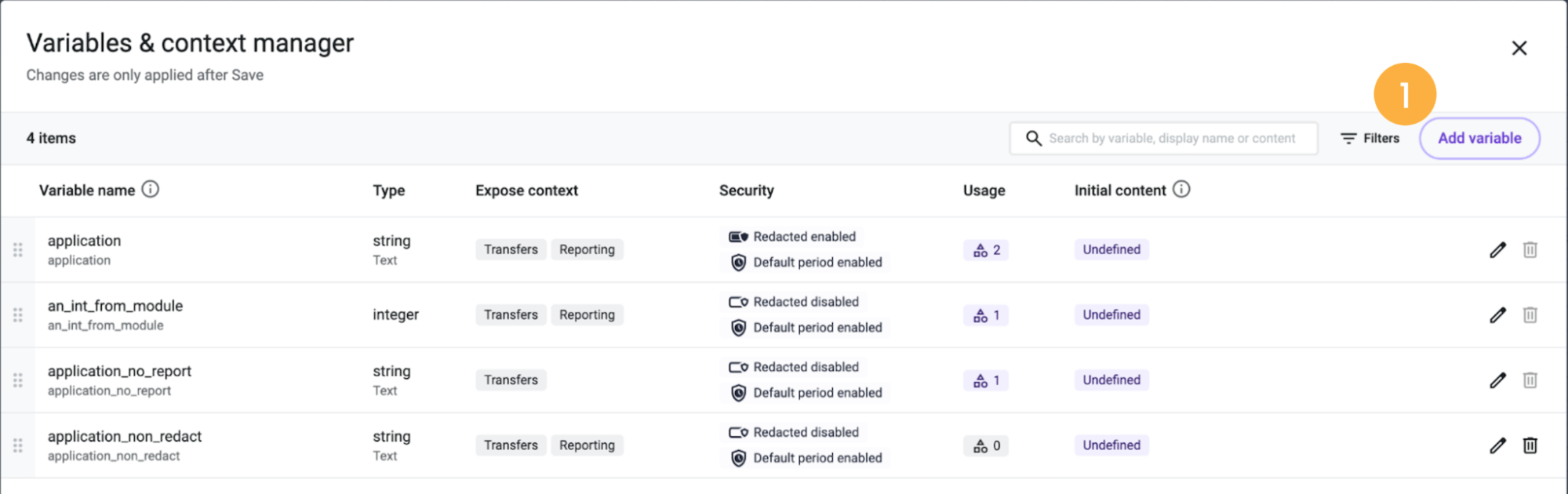
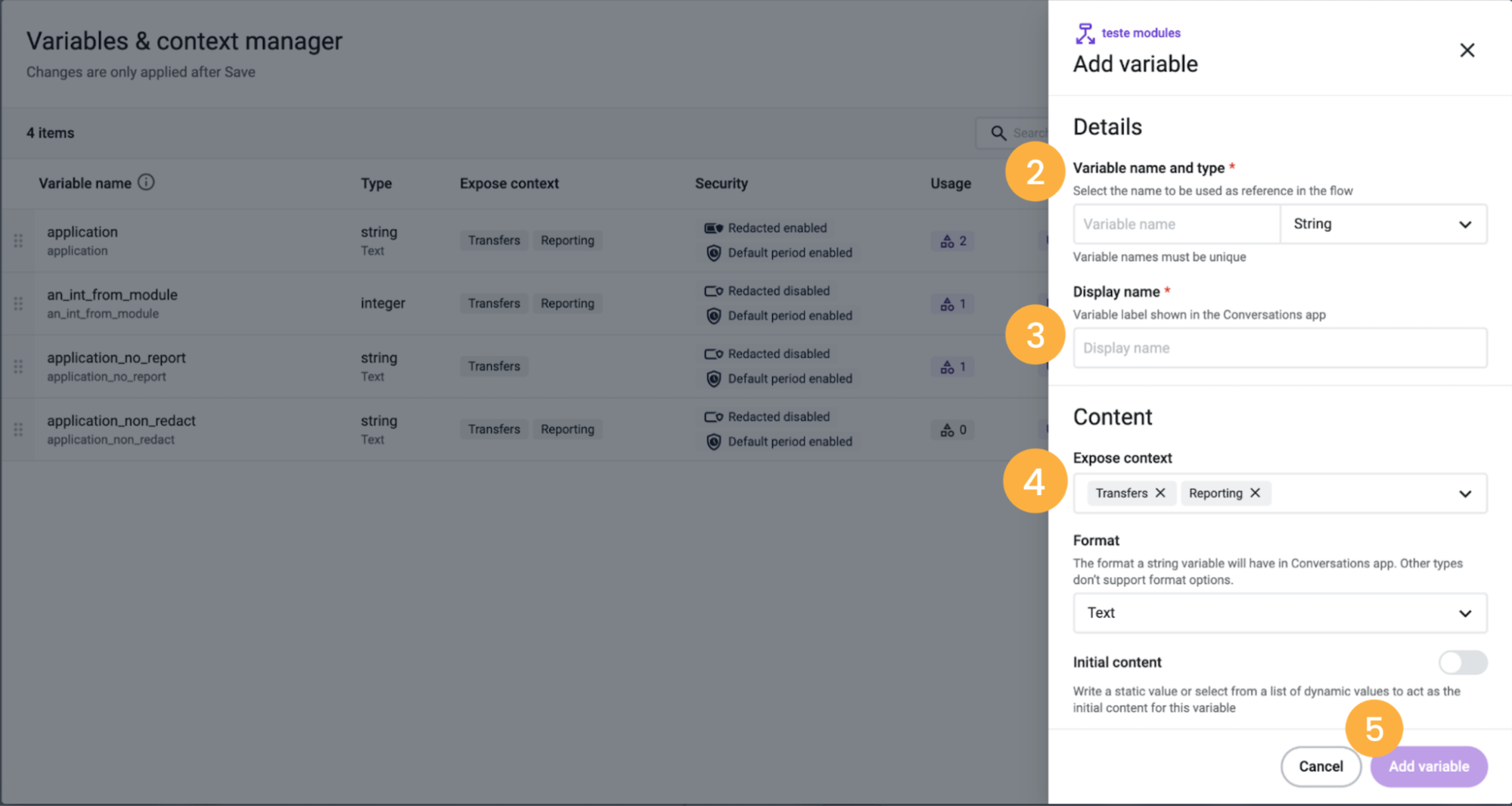
Click Add Variable [1].
-
Enter a variable name and select a type [2].
-
Enter a display name [3].
-
Optionally, enter initial content, including static values or dynamic values selected from the list [4].
-
Click Add Variable [5] to save.
Filtering Variables
- Click the Filter icon [1].
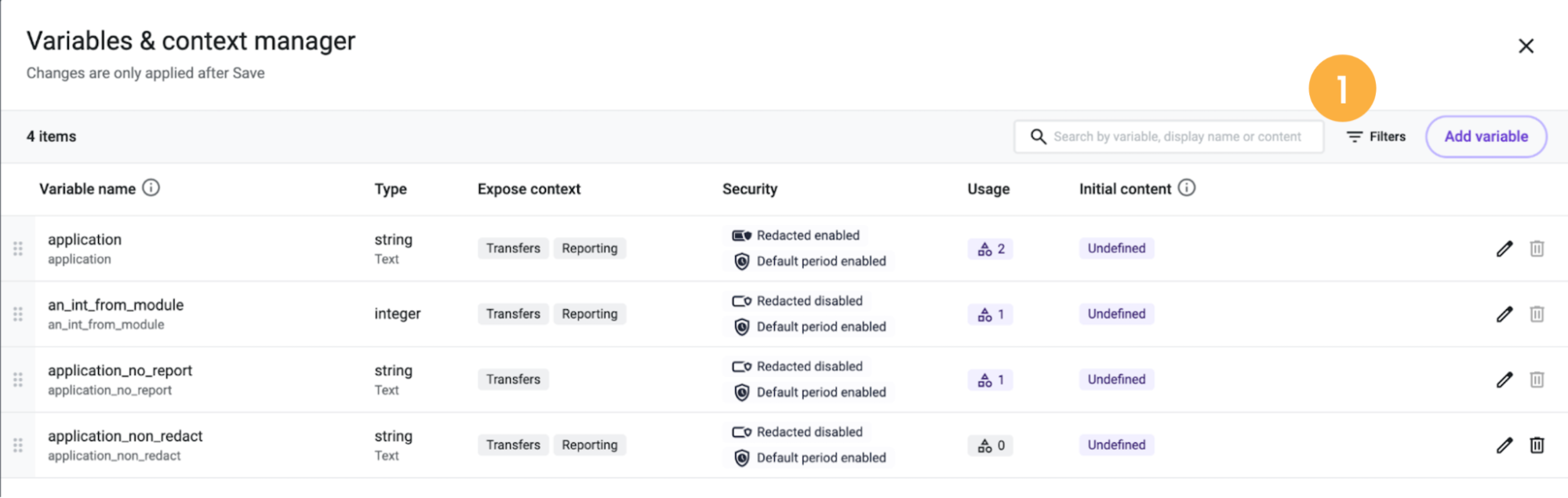
- Select one or more criteria: Type, Expose Context, Format, Redacted, Default Retention Period, Usage, or Initial Content [2].
- Click Apply Filters [3].
Reordering Variables
Builders can drag variables to reorder them in the list. Reordering matters because context variables are read back in the order shown (for example, in Conversations).
Deleting a Variable
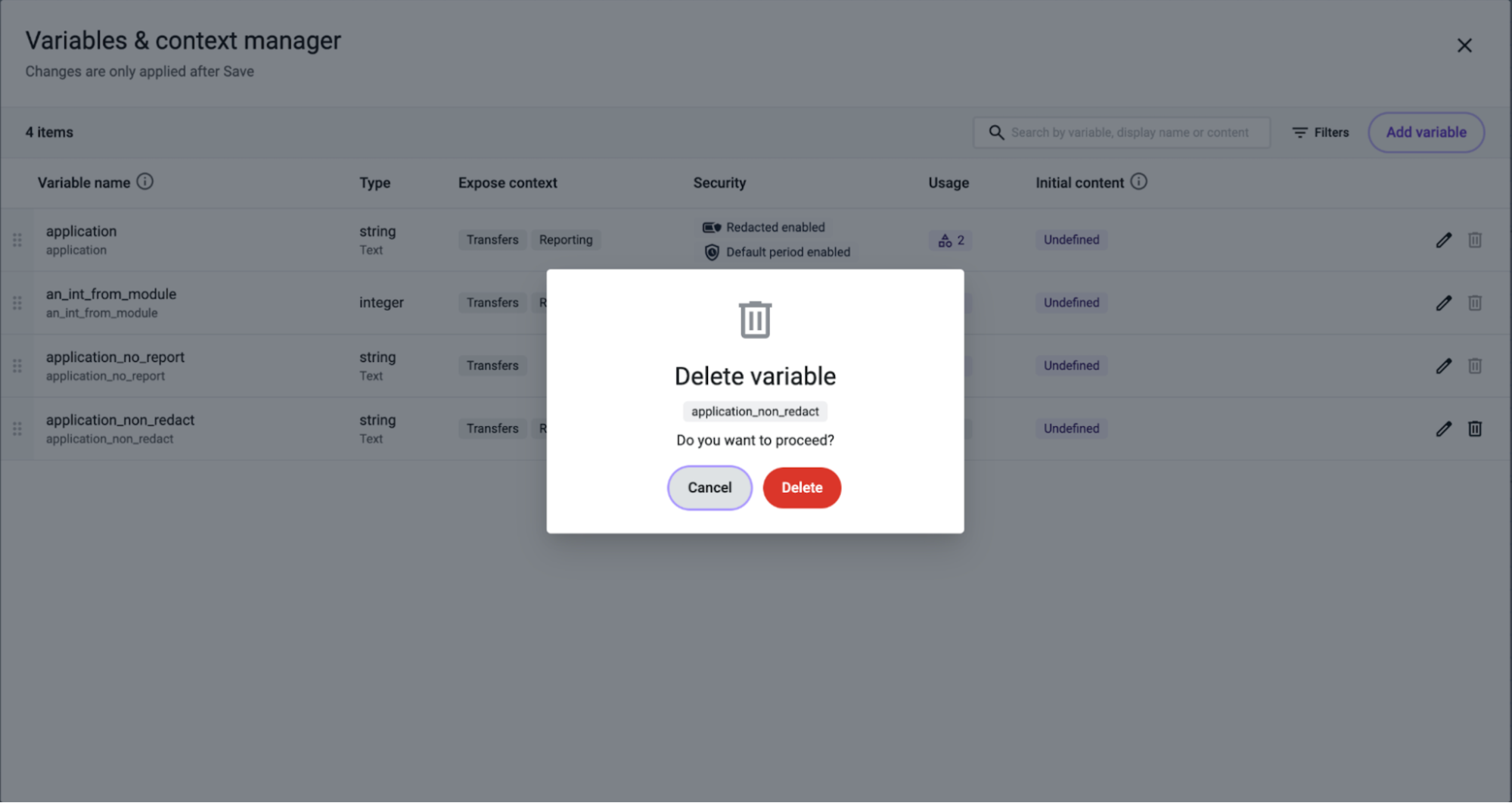
Builders with the required permissions can click the delete icon next to a variable to remove it. Only variables without usage can be deleted. The same will apply to edit variables, where type is only available if the variable is not in use.
Initial Content
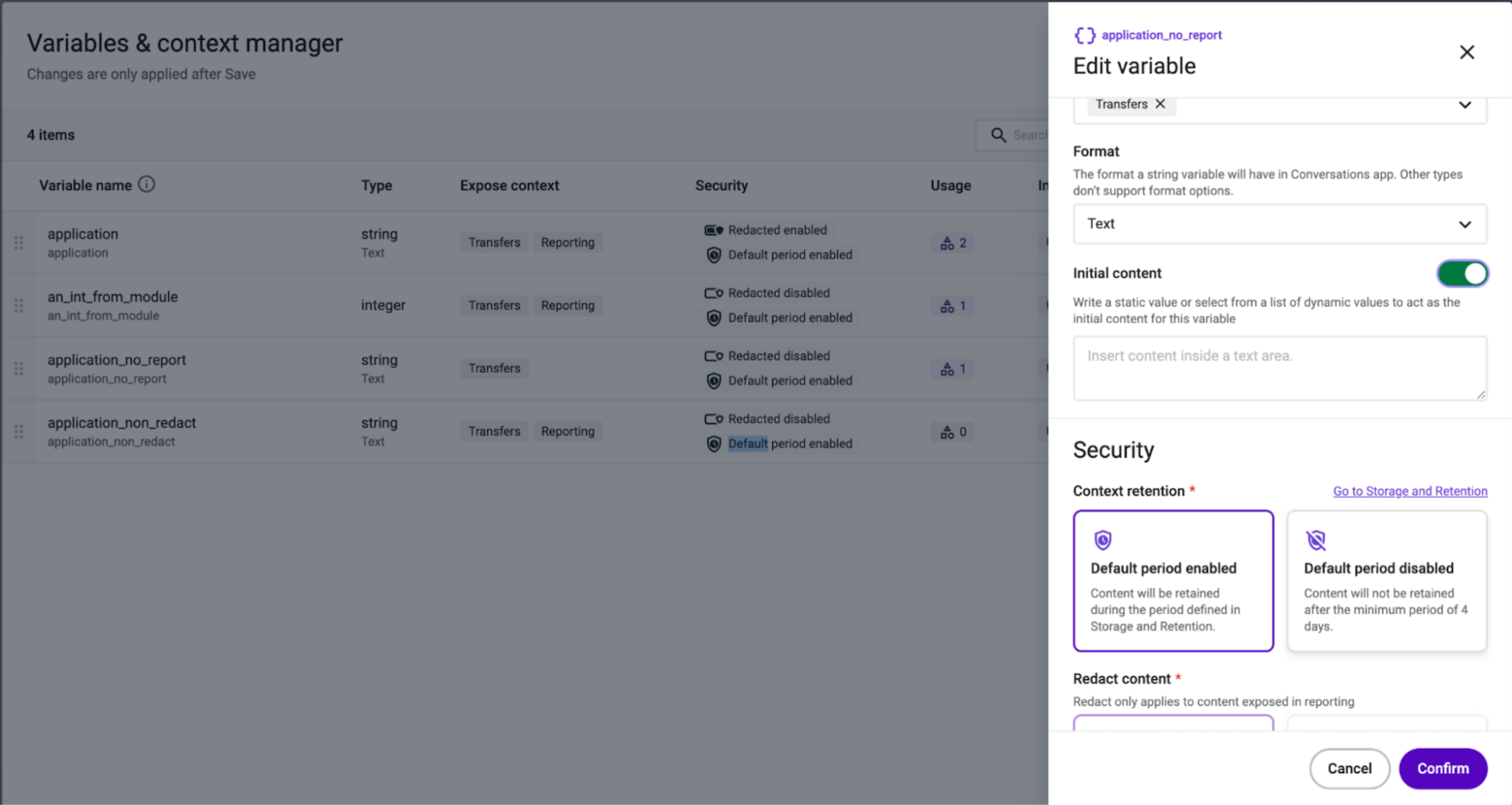
Users can set initial content for a context variable, allowing it to have a default value that will then be overwritten when written in the flow.
Updated about 1 month ago